How to Calibrate Your Printer for Dimensional Accuracy guides you through the essential steps to ensure your 3D prints meet precise specifications. Achieving dimensional accuracy is paramount for functional parts, and this comprehensive resource will illuminate the common pitfalls and the critical factors that influence the success of your prints.
We will delve into the foundational principles of dimensional accuracy in 3D printing, exploring why it’s crucial for creating functional objects. You’ll learn about common issues that lead to inaccuracies, identify key influencing factors, and be equipped with a thorough understanding of how to overcome these challenges for superior print quality.
Understanding Dimensional Accuracy in 3D Printing
Dimensional accuracy is a cornerstone of successful 3D printing, referring to how closely the physical dimensions of a printed object match its intended digital design. In essence, it’s the measure of precision with which your 3D printer can replicate the exact sizes, shapes, and tolerances specified in your CAD model. Achieving high dimensional accuracy is not merely about aesthetics; it is fundamentally about the functionality and usability of the printed part.When we talk about dimensional accuracy, we are looking at the deviation between the commanded dimension in the digital model and the actual measured dimension on the printed object.
For instance, if a design specifies a hole with a diameter of 10mm, a dimensionally accurate print would yield a hole very close to that 10mm. Inaccurate prints might result in a hole that is slightly larger or smaller, which can have significant consequences for how the part functions, especially in assemblies or applications requiring tight tolerances.
The Critical Importance of Precise Dimensions for Functional Prints
The necessity of achieving precise dimensions in 3D printing is paramount, particularly when creating parts intended for functional applications. Many 3D printed components are designed to interact with other parts, fit into specific enclosures, or perform mechanical tasks. In such scenarios, even minor deviations in size can lead to catastrophic failures or render the part completely unusable. For example, a gear printed with slightly off dimensions might not mesh correctly with its mating gear, leading to increased wear, noise, or complete operational failure.
Similarly, a component designed to snap into place might be too loose or too tight, preventing proper assembly.
Common Causes of Dimensional Inaccuracies
Several factors can contribute to dimensional inaccuracies in 3D printed objects. Understanding these common issues is the first step towards addressing and mitigating them. These problems often arise from a combination of hardware limitations, material properties, and slicer settings.Common issues leading to dimensional inaccuracies include:
- Over-extrusion: When the printer extrudes more filament than necessary, it can lead to parts that are slightly larger than designed, with bulging features and less precise corners.
- Under-extrusion: Conversely, extruding too little filament can result in parts that are smaller than intended, with gaps and weakened structures.
- Shrinkage and Warping: Many 3D printing materials, especially thermoplastics, shrink as they cool. If this cooling is uneven, it can cause the print to warp, lifting edges from the build plate and distorting dimensions.
- Layer Shifting: Mechanical issues like loose belts, misaligned stepper motors, or insufficient cooling can cause layers to shift, leading to skewed or distorted shapes.
- Inaccurate E-steps: The extruder’s steps per millimeter (E-steps) calibration dictates how much filament is pushed through the nozzle. If this is not calibrated correctly, it directly impacts extrusion volume and thus print dimensions.
- Filament Diameter Variations: Inconsistent filament diameter can lead to unpredictable extrusion rates, affecting the accuracy of printed features.
- Thermal Expansion/Contraction: The temperature of the nozzle, bed, and ambient environment can influence how the plastic behaves during printing and cooling, impacting final dimensions.
Key Factors Influencing Dimensional Accuracy
The journey to achieving dimensionally accurate prints is influenced by a confluence of critical factors throughout the printing process. Each of these elements plays a significant role in determining the final size and shape of the printed object. Mastering these factors allows for greater control and predictable results.The key factors influencing dimensional accuracy include:
1. Printer Calibration and Mechanical Stability
The physical state of your 3D printer is foundational. A well-maintained and properly calibrated printer is essential for consistent results. This encompasses:
- Bed Leveling: An uneven build plate can lead to the first layer adhering poorly or inconsistently, affecting the overall dimensions of the print from the base up.
- Axis Calibration (Steps per mm): Ensuring that each axis (X, Y, Z) moves the correct distance for a given command is crucial. Incorrect steps per millimeter settings will result in prints that are uniformly scaled larger or smaller in that dimension.
- Belt Tension: Loose or overly tight belts on the X and Y axes can lead to inaccuracies. Loose belts can cause backlash and ringing, while overly tight belts can strain motors and cause skipped steps.
- Frame Rigidity: A stable and rigid printer frame minimizes vibrations and movements during printing, which are detrimental to accuracy.
2. Slicer Settings and Software Configuration
The software used to prepare your 3D model for printing, known as the slicer, has a profound impact on dimensional accuracy. The settings chosen within the slicer directly translate the digital model into instructions for the printer.Important slicer settings include:
- Flow Rate/Extrusion Multiplier: This setting controls the amount of filament extruded. Incorrect flow rate is a primary cause of over- or under-extrusion, directly affecting part dimensions.
- Print Temperature: The nozzle temperature affects filament viscosity and flow. Printing too hot can lead to oozing and imprecise details, while printing too cold can cause poor layer adhesion and incomplete extrusion.
- Print Speed: Higher print speeds can sometimes lead to decreased accuracy due to increased vibrations and potential for skipped steps.
- Cooling Fan Speed: Adequate cooling is vital for solidifying plastic quickly, especially for overhangs and small features. Insufficient cooling can lead to drooping and dimensional distortion.
- Retraction Settings: Properly tuned retraction minimizes stringing and blobs, which can affect the surface quality and the dimensional precision of fine details.
- Layer Height: While not directly impacting overall dimensions, finer layer heights can improve the resolution of curved surfaces and small features.
- Horizontal Expansion/XY Compensation: Some slicers offer settings to compensate for inherent inaccuracies in horizontal scaling, allowing you to fine-tune dimensions.
3. Filament Properties and Quality
The material you use for printing plays a critical role in its dimensional behavior. Different filaments have unique characteristics that influence how they shrink, warp, and adhere.Consider these filament properties:
- Material Type: Materials like ABS are known for significant shrinkage and warping compared to PLA.
- Filament Diameter Consistency: Variations in filament diameter, even within a single spool, can lead to inconsistent extrusion and dimensional errors. Reputable brands typically maintain tighter tolerances.
- Moisture Content: Hygroscopic filaments (those that absorb moisture from the air) can print with reduced quality, porosity, and dimensional instability. Proper storage and drying are essential.
- Additives and Fillers: Filaments with carbon fiber or other fillers can sometimes behave differently in terms of shrinkage and flow.
4. Environmental Factors
The environment in which your 3D printer operates can also influence the dimensional stability of your prints.Key environmental considerations include:
- Ambient Temperature: Significant fluctuations in room temperature can affect the rate of cooling and lead to uneven shrinkage and warping, especially for materials prone to thermal expansion and contraction.
- Drafts: Uncontrolled airflow or drafts can cause rapid, uneven cooling, exacerbating warping issues. Enclosures are often used to mitigate this.
- Humidity: High humidity can affect the performance of certain filaments and contribute to print quality issues that indirectly impact accuracy.
Pre-Calibration Checks and Preparations
Before embarking on the journey of calibrating your 3D printer for dimensional accuracy, it’s crucial to establish a solid foundation. Just as a chef ensures all ingredients are fresh and tools are sharp before cooking, a 3D printer requires a thorough inspection and preparation to guarantee the calibration process is both effective and yields the most precise results. Neglecting these initial steps can lead to misleading calibration data and ultimately, less accurate prints.Ensuring your printer is mechanically sound is paramount.
A printer with loose belts, wobbly axes, or a misaligned bed will inherently struggle to achieve dimensional accuracy, regardless of how meticulously you calibrate its software. These mechanical imperfections introduce inconsistencies that calibration alone cannot overcome. Addressing these issues first allows the calibration process to focus on refining the printer’s inherent capabilities rather than compensating for fundamental flaws.
Mechanical Soundness Verification
The structural integrity of your 3D printer is the bedrock of its accuracy. A frame that is not perfectly straight and square will translate any deviations into your printed models. Imagine trying to build a perfectly rectangular box on a table that is noticeably tilted; the resulting box will also be tilted. Similarly, a printer’s frame must be rigid and its axes must move in perfect perpendicularity to each other.To verify the straightness and squareness of the printer’s frame, a few key checks are necessary.
Begin by visually inspecting all frame components for any signs of warping, bending, or damage. Next, utilize a precision machinist’s square to check the corners of the frame where the axes meet. This tool, with its precisely ground 90-degree angle, can reveal even slight deviations from true squareness. For larger printers, a carpenter’s square can be a useful, albeit less precise, alternative.
Additionally, check that all linear rails or guide rods are parallel and free from any binding or excessive play. Gently move each axis through its full range of motion, feeling for any resistance or unevenness that might indicate misalignment.
Essential Pre-Calibration Checklist
A systematic approach to pre-calibration ensures no critical aspect is overlooked. This checklist serves as a guide to prepare your printer for the most accurate calibration possible.
- Cleanliness: Ensure all print surfaces, nozzles, and linear motion components (rails, rods, bearings) are free from dust, debris, and old filament residue. A clean environment prevents obstructions and ensures smooth movement.
- Belt Tension: Verify that the X and Y axis belts are adequately tensioned. They should be taut enough to prevent skipping or slop but not so tight as to strain the motors or bearings. A common test is to pluck the belt; it should produce a low-frequency “thrum” rather than a slack “thud” or a high-pitched “twang.”
- Axis Movement: Manually move each axis (X, Y, Z) through its entire range of motion. Feel for any binding, grinding, or excessive resistance. This can indicate misaligned rods, worn bearings, or obstructions.
- Gantry Squarness: For Cartesian printers, ensure the X-axis gantry is perpendicular to the Z-axis. A carpenter’s square can be used to check this at various points along the gantry’s travel.
- Bed Leveling: While not strictly calibration, a properly leveled print bed is foundational for accurate first layers, which significantly impact overall dimensional accuracy. Perform a manual or automatic bed leveling routine.
- Nozzle Condition: Inspect the nozzle for any signs of wear, clogs, or damage. A worn or partially clogged nozzle can lead to inconsistent extrusion, affecting dimensional accuracy.
- Firmware Settings: Familiarize yourself with your printer’s firmware settings related to steps per millimeter for each axis. While these will be adjusted during calibration, understanding their current values is beneficial.
Software and Hardware Tools for Calibration
To effectively calibrate your 3D printer for dimensional accuracy, a combination of specialized software and precise hardware tools is indispensable. These tools allow for accurate measurements and precise adjustments, forming the backbone of a successful calibration process.The primary software tool you will likely encounter is your printer’s firmware itself, accessible through an LCD interface or a connected computer via slicer software or dedicated firmware flashing tools.
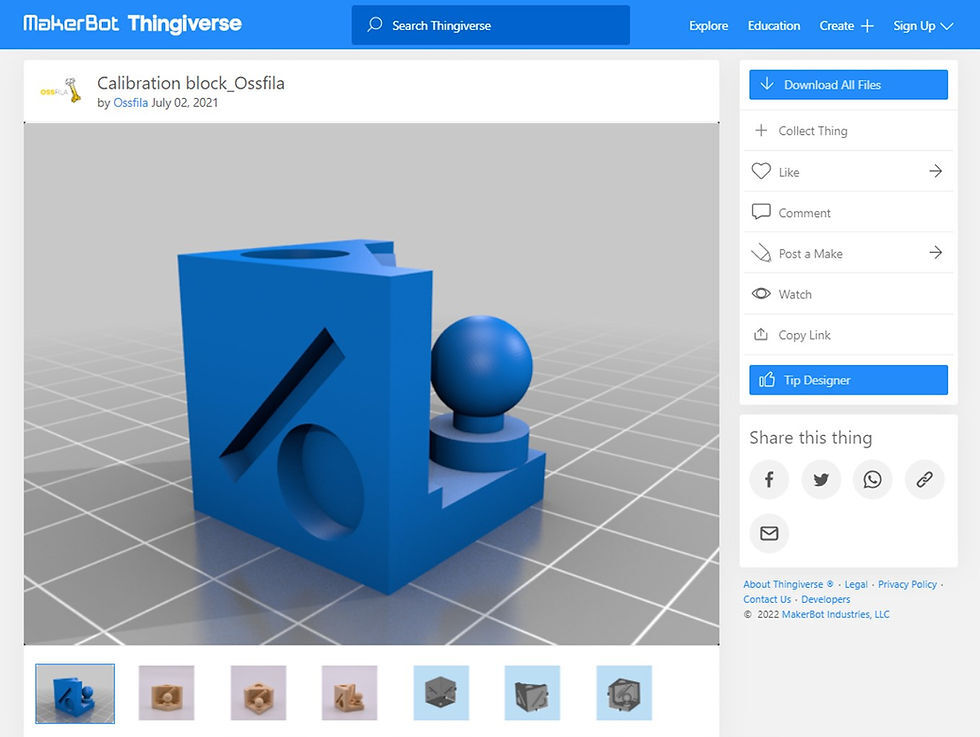
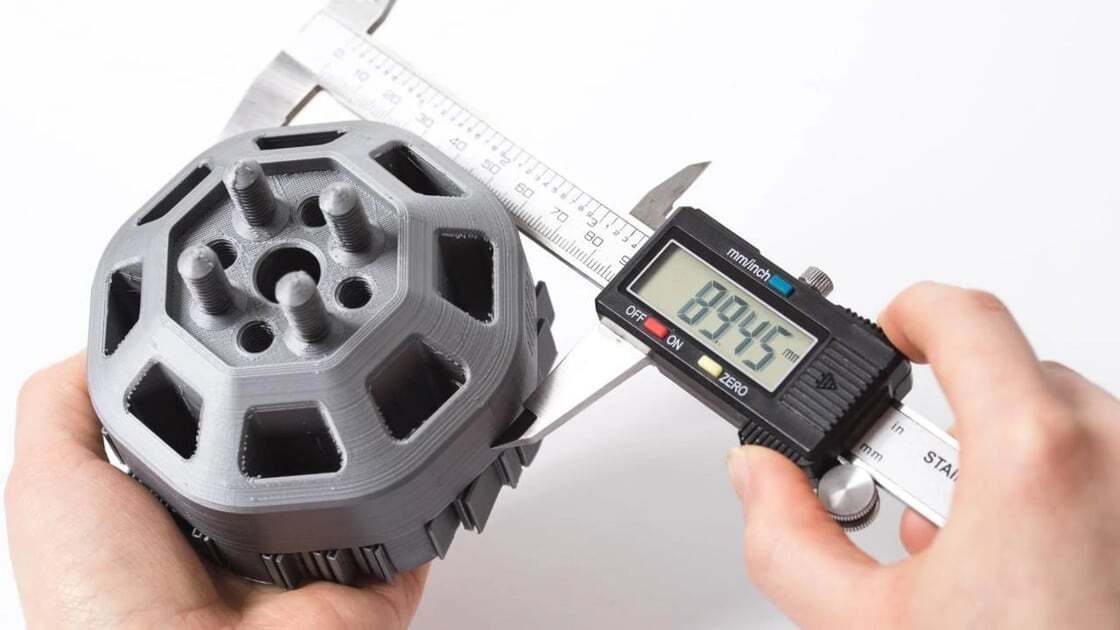
Beyond this, specialized calibration prints are essential. These are typically small, geometrically simple objects like cubes, spheres, or calibration towers, designed to highlight specific dimensional inaccuracies. Websites like Thingiverse or Printables host a wide variety of such calibration models.For hardware, precision is key. A digital caliper is the most critical tool for measuring the dimensions of your calibration prints. Look for a digital caliper with a resolution of at least 0.01mm for the best results.
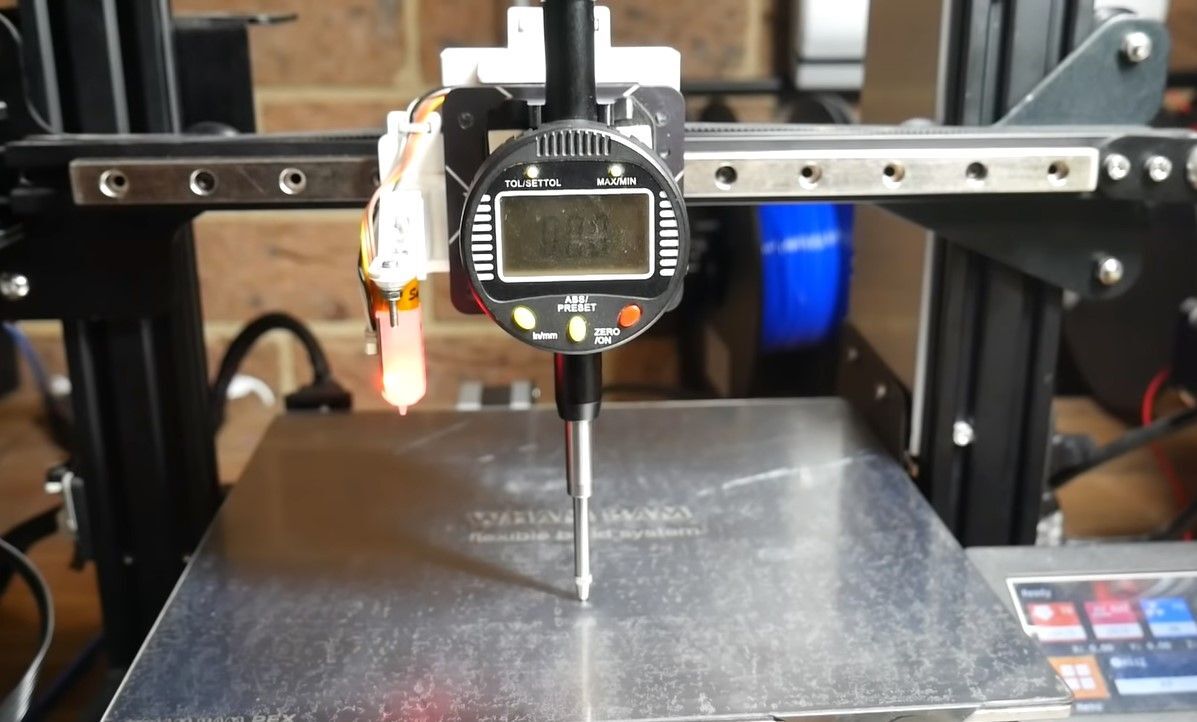
A metal ruler with clear markings is also useful for general checks. For verifying frame squareness, as mentioned earlier, a precision machinist’s square is highly recommended. In some advanced calibration workflows, a dial indicator can be employed to measure runout or wobble on linear axes, providing an even higher level of precision. Finally, a reliable computer and appropriate slicing software (e.g., Cura, PrusaSlicer, Simplify3D) are necessary for preparing models and sending them to the printer.
Calibrating Extrusion Multiplier (E-Steps)
The extrusion multiplier, often referred to as E-steps, is a critical setting that dictates how much filament your extruder motor pushes through the nozzle for a given command. Incorrect E-steps can lead to under-extrusion (gaps in your print, weak layers) or over-extrusion (blobs, stringing, poor detail). Calibrating this value ensures precise filament delivery, which is fundamental for achieving dimensional accuracy and high-quality prints.This process involves a straightforward measurement and calculation to align your printer’s commanded extrusion with the actual amount of filament fed.
By meticulously following these steps, you can fine-tune your printer for optimal filament flow, directly impacting the accuracy and integrity of your 3D prints.
Measuring Filament Extruded
To begin calibrating your E-steps, you need to accurately measure how much filament your extruder actually pushes out when commanded to extrude a specific length. This requires a few simple tools and a methodical approach.First, ensure your hotend is heated to the printing temperature for the filament you are using. This is crucial because filament expands when heated, and accurate measurement must occur at operating temperature.
Mark a point on your filament at the extruder’s entry point. Then, use your printer’s control interface (LCD screen or host software like Pronterface) to command the extruder to push out a precise length of filament, typically 100mm. After the command is executed, measure the distance from the extruder’s entry point to your mark.
Calculating the Correct E-steps Value
Once you have measured the actual amount of filament extruded, you can calculate the correct E-steps value. This calculation is based on the difference between the commanded extrusion and the actual extrusion.The formula to determine the correct E-steps is as follows:
New E-steps = (Current E-steps
Commanded Extrusion Length) / Actual Extruded Length
For example, if your current E-steps are set to 93, you commanded 100mm of extrusion, and you measured that only 95mm was actually extruded, your calculation would be:New E-steps = (93 – 100) / 95 = 97.89This new value will be used to update your printer’s settings.
Adjusting E-steps in Printer Firmware or Slicer Settings
There are two primary methods for adjusting your printer’s E-steps: directly in the firmware or through your slicer software. Adjusting in the firmware is generally recommended as it is a global setting for your printer, affecting all prints regardless of the slicer used.To adjust in the firmware, you will typically connect to your printer via USB and use a terminal program (like Pronterface, OctoPrint’s terminal tab, or a serial monitor in Arduino IDE) to send G-code commands.
The command to set E-steps is `M92 E[new_value]`, where `[new_value]` is the calculated E-steps value. For instance, using our example, you would send `M92 E97.89`. After sending this command, you must save the new settings to the printer’s EEPROM by sending the `M500` command.Alternatively, some slicers allow for E-steps adjustment. In Cura, for example, you can find this setting under Machine Settings -> Machine -> G-code scripts -> Before print start G-code.
You would add the command `M92 E[new_value]` there. However, this method is less permanent and relies on the slicer executing the command before each print.
Verifying E-steps Calibration Accuracy
After adjusting your E-steps, it is essential to verify the calibration to ensure accuracy. This involves repeating the measurement process to confirm that the printer now extrudes the commanded length precisely.Several methods can be employed for verification:
- Repeat Measurement: The most straightforward verification is to repeat the exact measurement process used for calibration. Command another 100mm extrusion and measure the actual extruded length. It should now be very close to 100mm.
- Print a Calibration Cube: A 20x20x20mm calibration cube is an excellent tool. After printing, measure the dimensions of the printed cube. If your E-steps are correctly calibrated, the dimensions should be very close to the intended values. Pay attention to any signs of over or under-extrusion on the surfaces.
- Extrude a Large Length: For a more rigorous test, command a larger extrusion length, such as 200mm or 300mm. Measure the actual extruded length. This can reveal cumulative errors that might not be apparent with smaller extrusion commands.
By employing these verification techniques, you can be confident that your printer’s extrusion multiplier is accurately set, contributing significantly to achieving dimensionally accurate and high-quality 3D prints.
Calibrating Bed Leveling and First Layer Adhesion
A perfectly level print bed is the cornerstone of successful 3D printing, directly impacting not only the aesthetic quality of your prints but also their dimensional accuracy. When the build plate is not uniformly level, the nozzle’s distance from the bed will vary across its surface. This inconsistency leads to parts that are warped, have uneven bases, or fail to adhere properly, all of which compromise the intended dimensions of the printed object.
Addressing bed leveling and first-layer adhesion is therefore a critical step in ensuring your printer consistently produces dimensionally accurate components.The first layer is arguably the most important layer in any 3D print. It acts as the foundation upon which all subsequent layers are built. If this initial layer is not applied correctly, it can propagate errors throughout the entire print.
Proper bed leveling ensures that the nozzle maintains a consistent and optimal distance from the build plate, allowing the extruded filament to be squished slightly onto the surface. This slight deformation, known as “squish,” creates a strong mechanical bond, or adhesion, between the filament and the build plate, preventing the print from detaching during the printing process.
Methods for Achieving Optimal Bed Leveling
Achieving a level print bed is fundamental for consistent print quality and dimensional accuracy. The method employed often depends on the type of 3D printer you are using. Manual leveling involves physical adjustments, while automatic systems utilize sensors to achieve precision.
Manual Bed Leveling
Manual bed leveling is a common practice for many FDM (Fused Deposition Modeling) printers. It involves adjusting leveling knobs or screws located at the corners of the print bed to achieve a uniform gap between the nozzle and the bed. This process is iterative and requires patience.
- Using a piece of paper: This is the most common technique. After heating the nozzle and bed to typical printing temperatures (as filament properties can change with temperature, affecting the gap), move the nozzle to each corner of the print bed. Place a standard piece of printer paper (around 0.1 mm thick) between the nozzle and the bed. Adjust the leveling knob at that corner until you feel a slight drag on the paper as you slide it back and forth.
The paper should move with a gentle resistance, not be stuck, nor slide completely freely.
- Checking multiple points: It’s important to check not only the four corners but also the center of the bed. Sometimes, the bed may have a slight warp or sag in the middle, which can affect prints even if the corners are level.
- Iterative adjustments: After adjusting all corners, it’s crucial to re-check them, as adjusting one corner can slightly affect the others. Repeat the process until a consistent drag is felt at all points.
Automatic Bed Leveling (ABL) Systems
Automatic Bed Leveling systems, often referred to as ABL, are designed to simplify and improve the accuracy of bed leveling. These systems use sensors to probe the print bed at multiple points and create a mesh that compensates for any unevenness during the printing process.
- Inductive, Capacitive, and Optical Sensors: These sensors measure the distance to the print bed by detecting changes in inductance, capacitance, or light reflection, respectively. They are typically mounted on the print head and probe the bed surface.
- BLTouch and similar probe systems: These are popular electro-mechanical probes that extend a small pin to physically touch the bed surface, detecting its height.
- Mesh Bed Leveling: Once the ABL system probes the bed, it generates a “mesh” of height data. The printer’s firmware then uses this mesh to adjust the Z-axis height dynamically as the nozzle moves across the print area, ensuring a consistent nozzle-to-bed distance.
- Firmware integration: ABL systems require proper firmware configuration. The firmware needs to be instructed to initiate the probing sequence before each print and to apply the mesh compensation during printing.
Techniques for Ensuring Consistent First-Layer Adhesion
A strong first layer is essential for print success. It provides the foundation for the rest of the print and is critical for dimensional accuracy. Several factors contribute to achieving excellent first-layer adhesion.
- Proper Nozzle Height: As discussed in bed leveling, the correct nozzle height is paramount. Too high, and the filament won’t adhere; too low, and it can clog the nozzle or scrape the bed. The ideal “squish” is a balance.
- Bed Surface Preparation: The build surface itself plays a significant role. Different materials require different preparation methods.
- Glass: Often benefits from a thin layer of adhesion aid like hairspray (aquanet type), glue stick (PVP-based), or specialized 3D printing adhesives. Ensure the glass is clean before application.
- PEI (Polyetherimide) sheets: Generally offer excellent adhesion when clean. Wiping down with isopropyl alcohol (IPA) before printing is usually sufficient. Over time, oils from fingerprints can reduce adhesion.
- Textured sheets: These surfaces often provide good adhesion out of the box and can leave a pleasing texture on the bottom of prints. Regular cleaning with IPA is recommended.
- Print Bed Temperature: The temperature of the print bed is critical for melting the filament slightly and allowing it to bond with the surface. PLA typically requires 50-60°C, while ABS and PETG may need higher temperatures, often 80-110°C. Consult your filament manufacturer’s recommendations.
- Print Speed for the First Layer: Printing the first layer at a slower speed allows the filament more time to adhere to the build plate. A speed of 15-30 mm/s is often recommended for the first layer, significantly slower than the speeds used for subsequent layers.
- Filament Extrusion Rate (Flow Rate): While E-steps calibrate the amount of filament extruded, the flow rate setting in your slicer fine-tunes this for specific filaments. A slight increase in flow rate (e.g., 105%) for the first layer can sometimes help ensure a good squish and adhesion, provided it doesn’t cause over-extrusion.
Identifying and Resolving Common First-Layer Adhesion Problems
Troubleshooting first-layer adhesion issues is a common part of 3D printing. Recognizing the symptoms can help you quickly diagnose and fix the problem.
No Adhesion / Filament Not Sticking
This is the most obvious problem. The filament simply doesn’t stick to the build plate.
- Cause: Nozzle is too high above the bed, or the bed surface is not clean/prepared.
- Solution: Re-level the bed, ensuring the nozzle is at the correct height with a slight drag on a piece of paper. Clean the build surface thoroughly with IPA or apply an appropriate adhesion aid. Increase bed temperature slightly. Slow down the first layer print speed.
Warping / Lifting Corners
The corners of the print begin to lift off the bed as the print progresses.
- Cause: Uneven cooling, poor initial adhesion, or large temperature differentials.
- Solution: Ensure good first-layer adhesion with proper squish and bed temperature. Use a brim or raft in your slicer settings to increase the surface area in contact with the bed. Consider using an enclosure to maintain a stable ambient temperature and reduce drafts. Adjust cooling fan settings (often turned off for the first few layers).
“Elephant Foot”
The bottom layers of the print bulge outwards, making the base wider than intended.
- Cause: Nozzle is too close to the bed, causing excessive squish, or bed temperature is too high.
- Solution: Re-level the bed to raise the nozzle slightly. Reduce the first layer extrusion multiplier (flow rate) in your slicer. Reduce the bed temperature slightly if it’s at the higher end of the recommended range for the filament.
Stringing on the First Layer
Fine strands of filament appear between the extruded lines of the first layer.
- Cause: Filament is too wet, or retraction settings are not optimal.
- Solution: Dry your filament, as moisture is a common cause of stringing. Fine-tune retraction settings in your slicer (increase retraction distance and/or speed). Ensure the nozzle temperature is not excessively high.
Inconsistent Extrusion on First Layer
Gaps appear between extruded lines, or the extruded lines are uneven.
- Cause: Clogged nozzle, incorrect E-steps/flow rate, or bed is not perfectly level.
- Solution: Clean the nozzle or perform a cold pull. Re-verify your E-steps calibration and flow rate settings. Ensure the bed is perfectly level and the nozzle height is correct.
Calibrating Print Speed and Acceleration Settings
Now that we’ve ensured your printer is mechanically sound and the extrusion is dialed in, it’s time to fine-tune the dynamics of your prints. Print speed and acceleration are critical parameters that significantly influence not only the time it takes to complete a print but also its dimensional accuracy and overall quality. Understanding how these settings interact with your printer’s hardware and filament properties is key to achieving precise results.When a 3D printer moves, it doesn’t instantly reach its target speed.
Instead, it accelerates to that speed and then decelerates to stop. Similarly, when changing direction, it experiences forces that can cause vibrations and overshoot. These dynamic movements, especially at higher speeds and accelerations, can lead to a variety of print defects that directly impact dimensional accuracy, such as ringing, ghosting, and dimensional inaccuracies due to inertia.
Impact of Print Speed on Dimensional Accuracy
Print speed directly affects the amount of material deposited and the time it has to cool and solidify before the next layer is added. Higher print speeds can lead to under-extrusion if the hotend cannot melt and deposit filament fast enough, resulting in thinner walls and reduced dimensions. Conversely, if the filament cools too slowly due to excessive dwell time at each point (which can happen with very slow speeds or complex geometries), it can sag or deform, again impacting accuracy.
The goal is to find a speed that balances throughput with the printer’s ability to accurately lay down and solidify material.
Finding Optimal Print Speed Settings for Different Filament Types
Different filament materials have varying melting points, viscosities, and cooling rates, which necessitate different optimal print speeds. For instance, PLA generally prints well at higher speeds due to its relatively fast cooling. PETG, on the other hand, often requires slower speeds to prevent stringing and ensure good layer adhesion. ABS might need even slower speeds and controlled cooling to prevent warping.A systematic approach to finding optimal speeds involves starting with conservative settings recommended by the filament manufacturer and then incrementally increasing the speed while observing the print quality.
Small test prints, such as a calibration cube or a single-wall vase, are ideal for this.
- PLA: Typically, speeds between 50-100 mm/s are common. For high-quality prints, starting around 60 mm/s and gradually increasing is recommended.
- PETG: Often benefits from speeds between 40-60 mm/s. Slower speeds help manage its tendency to string.
- ABS: Generally printed slower, around 30-50 mm/s, to manage warping and ensure good layer adhesion, especially in enclosed printers.
- TPU: Flexible filaments are usually printed at very slow speeds, often 20-40 mm/s, to prevent jamming and ensure consistent extrusion.
Effect of Acceleration and Jerk Settings on Print Quality and Accuracy
Acceleration dictates how quickly the print head reaches its set speed, and jerk (sometimes referred to as junction deviation) influences the instantaneous change in velocity at corners. High acceleration and jerk settings can cause the printer’s frame and motion system to vibrate, leading to artifacts like ringing and ghosting on the print surface. These vibrations can also cause the print head to momentarily deviate from its intended path, directly impacting dimensional accuracy, especially on sharp corners or fine details.Lowering acceleration and jerk can reduce these vibrations, resulting in smoother surfaces and more accurate dimensions.
However, excessively low settings can increase print times significantly and may not always be necessary if the printer’s frame is rigid and well-tuned.
“Acceleration is the rate of change of velocity, while jerk is the rate of change of acceleration. Higher values mean faster changes, which can introduce unwanted vibrations and inaccuracies.”
Systematic Approach to Testing and Fine-Tuning Print Speed and Acceleration
A methodical approach is essential for effectively calibrating these dynamic settings. It involves isolating variables and making incremental adjustments.
- Start with a Baseline: Use the default print speed and acceleration settings provided by your slicer software or printer manufacturer.
- Test Print Selection: Print a specific test object that highlights dimensional accuracy and surface quality issues. A 20mm calibration cube with sharp corners and straight walls is a good choice.
- Print Speed Calibration:
- Print the calibration cube at a slow, known speed (e.g., 30 mm/s) to establish a reference. Measure its dimensions.
- Incrementally increase the print speed by 10 mm/s for subsequent prints, keeping acceleration and jerk constant.
- Observe the print for signs of under-extrusion, ghosting, or dimensional deviations. Measure the dimensions of each cube.
- Identify the highest speed at which dimensional accuracy and surface quality remain acceptable.
- Acceleration and Jerk Calibration:
- Once an optimal print speed is determined, begin testing acceleration. Print the calibration cube at your chosen optimal speed.
- Start with a moderate acceleration setting (e.g., 500 mm/s²).
- Incrementally increase acceleration by 250 mm/s² for subsequent prints.
- Look for increased ringing or ghosting on the print surface and measure dimensions, paying attention to corners.
- For jerk/junction deviation, start with a low value (e.g., 5 mm/s) and gradually increase it. Observe corner sharpness and the presence of artifacts.
- Find the highest acceleration and jerk settings that do not introduce noticeable artifacts or compromise dimensional accuracy.
- Iterative Refinement: It’s often beneficial to re-test print speed after adjusting acceleration and jerk, as these parameters can interact. Make small, iterative adjustments until you achieve the best balance of speed, quality, and accuracy.
Many slicer programs offer specific calibration tools or plugins that can automate parts of this process, generating test models and guiding you through the adjustments. Always ensure to save your optimized profiles for future use.
Calibrating Temperature Settings (Nozzle and Bed)
The nozzle and bed temperatures are critical parameters that directly influence how your filament behaves during the printing process. Achieving the correct temperatures ensures optimal filament flow, proper layer adhesion, and ultimately, the dimensional accuracy of your printed object. Incorrect temperatures can lead to a variety of print defects, impacting both the quality and the integrity of your prints.Understanding the interplay between filament properties and temperature is key.
Each filament type, whether it’s PLA, ABS, PETG, or others, has a specific recommended printing temperature range. This range is determined by the filament’s melting point and its viscosity at different temperatures. The nozzle temperature dictates when and how the filament melts and extrudes, while the bed temperature plays a crucial role in ensuring the first layer adheres securely to the print surface and preventing warping.
Nozzle Temperature and Filament Flow
The nozzle temperature directly controls the state of the filament as it exits the hotend. If the temperature is too low, the filament will be too viscous, leading to under-extrusion, gaps in layers, and potentially clogged nozzles. Conversely, if the nozzle temperature is too high, the filament can become too fluid, resulting in over-extrusion, stringing, oozing, and a loss of fine detail.
Finding the sweet spot is essential for consistent and clean extrusion.
Bed Temperature and First Layer Adhesion
The bed temperature is primarily responsible for promoting adhesion between the first layer of the print and the build plate. A sufficiently warm bed helps to keep the plastic from cooling too rapidly and contracting, which is a common cause of warping, especially with materials like ABS. Proper bed temperature also ensures that the extruded plastic “bonds” to the surface, creating a stable foundation for the rest of the print.
Too low a bed temperature can lead to prints detaching mid-print, while excessively high temperatures can sometimes cause “elephant’s foot,” where the first few layers spread out more than intended, affecting dimensional accuracy.
Temperature Tower Tests for Optimal Filament Printing Temperature
A temperature tower is a specialized calibration print designed to help you identify the ideal nozzle temperature for a specific filament. It’s a vertical structure with several sections, each printed at a different temperature. By observing the quality of each section, you can determine which temperature yields the best results in terms of bridging, overhangs, surface finish, and overall detail.To perform a temperature tower test:
- Download a temperature tower model from a reputable 3D model repository or design one yourself.
- Configure your slicer software to print different sections of the tower at varying temperatures. Most slicer software has built-in features or scripts to facilitate this. You’ll typically define a temperature change at specific layer heights.
- Ensure your bed temperature is set to the recommended value for the filament being tested.
- Print the temperature tower.
- Once the print is complete, carefully inspect each section of the tower. Look for:
- Sharpness of details
- Absence of stringing
- Smoothness of surfaces
- Quality of overhangs
- Bridging performance
- Compare the results across the different temperature sections and select the temperature that provides the best overall quality.
Impact of Ambient Temperature on Printing Results
The temperature of your surrounding environment can significantly influence print quality and dimensional stability, especially for materials prone to warping. In cooler environments, prints can cool too quickly, leading to increased internal stresses and potential delamination or warping. Conversely, in very warm environments, particularly with materials like ABS, the heat can contribute to softening and deformation, affecting dimensional accuracy.
Ensuring Consistent Temperature Throughout the Printing Process
Maintaining a stable temperature environment is crucial for predictable and accurate prints. Several methods can help achieve this:
- Enclosures: For materials like ABS or ASA, using a 3D printer enclosure is highly recommended. An enclosure traps heat around the print, creating a stable, elevated ambient temperature that reduces thermal shock and minimizes warping.
- Draft Shields: Many slicer programs allow you to generate a draft shield, which is a thin wall printed around your object. This shield acts as a localized barrier against drafts and helps to maintain a more consistent temperature around the print.
- Controlled Environment: If possible, printing in a room with a stable, controlled temperature, free from drafts from open windows or air conditioning vents, can make a significant difference.
- Heated Bed Stability: While the heated bed is designed to provide consistent temperature, ensure it’s properly calibrated and that your printer’s firmware is set up to maintain the target temperature accurately. Fluctuations in bed temperature can impact first-layer adhesion and subsequent layer bonding.
Calibrating Flow Rate (Line Width)
While calibrating extrusion multiplier (E-steps) ensures your printer extrudes the correct
- amount* of filament, calibrating flow rate, also known as line width or extrusion width, fine-tunes how that filament is
- distributed*. This directly impacts the actual width of the extruded lines, which is crucial for achieving precise dimensions, especially in single-wall prints where this measurement is most evident. An incorrectly set flow rate can lead to over-extrusion, where lines are too wide and overlap excessively, or under-extrusion, where lines are too thin and leave gaps. Both scenarios compromise dimensional accuracy and the structural integrity of your prints.
The concept of flow rate is intrinsically linked to line width. In your slicer software, you’ll often find a setting for “Line Width” or “Extrusion Width.” This setting tells the slicer how wide each extruded line should be. Ideally, this should be set to match the diameter of your nozzle. However, due to various factors, including filament inconsistencies and the subtle nuances of your printer’s mechanics, a slight adjustment to the overall flow rate might be necessary to achieve the desired line width.
This calibration process involves printing a specific test object and measuring the resulting line width to inform adjustments in your slicer’s flow rate or extrusion multiplier settings.
Procedure for Calibrating Flow Rate
To accurately calibrate your printer’s flow rate, a single-wall cube or a similar thin-walled test print is an effective tool. This type of print minimizes internal features, allowing for a clear observation and measurement of the extruded lines on the exterior. The goal is to print a shape where the wall thickness is consistently one line width, making it easy to compare the printed measurement to the slicer’s intended setting.Here’s a step-by-step procedure:
- Design the Test Print: Create a simple cube in your CAD software with dimensions such as 20mm x 20mm x 20mm. In your slicer, configure the print settings for a single-wall thickness (e.g., set “Wall Line Count” or “Perimeters” to 1). Ensure that the “Line Width” or “Extrusion Width” setting in your slicer is set to match your nozzle diameter (e.g., 0.4mm for a 0.4mm nozzle).
- Slice and Print: Slice the model with these settings and print it. Use a filament that you commonly use and have previously calibrated for E-steps.
- Cool and Inspect: Allow the print to cool completely before handling it. Visually inspect the printed cube, paying close attention to the uniformity and consistency of the single wall. Look for any signs of gaps or excessive material buildup.
Measuring Actual Line Width
Once you have printed your single-wall test object, the next critical step is to accurately measure the actual width of the extruded lines. This measurement will be compared against the intended line width set in your slicer. Precise measurement is key to making informed adjustments.A digital caliper is the most suitable tool for this task.
- Measure Multiple Points: Carefully measure the thickness of the wall at several different points along the cube. Aim to measure across different sections and orientations to account for any minor inconsistencies in the print.
- Calculate Average Width: Record all your measurements and calculate the average width. This average value represents the actual line width produced by your printer with the current slicer settings.
Adjusting Flow Rate in the Slicer
After measuring the actual line width, you will compare it to the “Line Width” setting in your slicer. The difference between these two values will guide your adjustment of the flow rate, often referred to as “Flow” or “Extrusion Multiplier” in some slicers.The adjustment is typically made as a percentage:
Flow Rate Adjustment Percentage = ((Actual Measured Line Width – Slicer’s Intended Line Width) / Slicer’s Intended Line Width) – 100%
If your actual measured line width is greater than the slicer’s intended line width, you have over-extrusion, and you need to decrease the flow rate. Conversely, if the actual measured line width is less than the intended line width, you have under-extrusion, and you need to increase the flow rate.For example, if your slicer’s intended line width was 0.4mm, but you measured an average of 0.45mm, you have over-extrusion.
The adjustment would be:((0.45mm – 0.4mm) / 0.4mm) – 100% = 12.5% over-extrusion.You would then decrease your slicer’s flow rate setting by approximately 12.5%. If you measured 0.35mm, you have under-extrusion, and you would increase the flow rate by approximately 12.5%. After making the adjustment, slice and print the test object again to verify the improvement. Repeat this process until the measured line width closely matches the intended line width.
Visual Cues of Over- and Under-Extrusion
Recognizing the visual cues of over-extrusion and under-extrusion is essential for both calibration and general print quality assessment. These visual indicators provide immediate feedback on the flow rate and its dimensional consequences.Over-extrusion is characterized by several distinct visual traits:
- Excessive Material: Lines appear too wide, often squashing into neighboring lines and creating a slightly “blobby” or “fat” appearance.
- Poor Layer Adhesion (sometimes): While seemingly counterintuitive, severe over-extrusion can sometimes lead to poor layer adhesion because the excess plastic doesn’t have adequate space to bond properly with the layer below.
- Zits and Blobs: Small bumps or blobs on the surface of the print are common signs of over-extrusion, especially at the start or end of extrusion paths.
- Difficulty in Removing Supports: Over-extruded parts can fuse together more readily, making support removal challenging and potentially damaging the print.
- Dimensional Inaccuracy: Printed objects will be larger than intended. For example, a 20mm cube might measure 20.5mm or more.
Under-extrusion, on the other hand, manifests as:
- Gaps Between Lines: The most common sign is visible gaps or spaces between adjacent extruded lines, both within a layer and between layers.
- Weak Prints: Parts printed with under-extrusion are often weak and brittle due to insufficient material bonding.
- Poor Surface Finish: The surface may appear rough, uneven, or have a “stringy” texture.
- Layer Shifting (in severe cases): In extreme under-extrusion, the nozzle might skip or drag due to insufficient filament, leading to layer shifts.
- Dimensional Inaccuracy: Printed objects will be smaller than intended. A 20mm cube might measure 19.5mm or less.
Understanding these visual cues allows for a more intuitive approach to troubleshooting and refining your printer’s flow rate settings, contributing to prints that are not only dimensionally accurate but also structurally sound and aesthetically pleasing.
Calibrating Retraction Settings
Properly calibrated retraction settings are crucial for achieving clean, dimensionally accurate prints. When not configured correctly, retraction issues can manifest as stringing, blobs, and even affect the overall integrity of your printed object. This section will guide you through understanding and optimizing these settings.Improper retraction can lead to two primary problems: oozing and stringing. Oozing occurs when molten plastic continues to flow from the nozzle during travel moves, creating unwanted wisps of filament between separate parts of your print.
This not only looks unsightly but can also add material where it’s not intended, slightly altering dimensions. Stringing, on the other hand, is a more severe form of oozing where long, thin strands of filament stretch across open spaces, resembling spiderwebs. These strings can weaken the print and require significant post-processing to remove.
Key Retraction Parameters
The effectiveness of your retraction settings hinges on two main parameters: retraction distance and retraction speed. Understanding how these interact is vital for minimizing stringing and oozing.Retraction distance determines how much filament is pulled back into the nozzle when the extruder motor stops extruding. A common range for direct drive extruders is 0.5mm to 2mm, while Bowden extruders typically require a longer distance, often between 4mm and 7mm, due to the increased distance the filament must travel.
Too little retraction can result in stringing, while too much can cause filament grinding or jamming in the extruder.Retraction speed dictates how quickly the filament is pulled back. Similar to distance, direct drive extruders can handle higher speeds (e.g., 25-45 mm/s) than Bowden setups (e.g., 40-60 mm/s). Excessive speed can lead to filament grinding or stripping, whereas insufficient speed might not effectively prevent oozing.
Testing and Optimizing Retraction Settings
A systematic approach to testing and optimizing retraction settings ensures you find the sweet spot for your specific filament and printer. This often involves printing a retraction test model.A widely used method involves printing a series of small towers or spikes with significant travel moves between them. These models are designed to expose any issues with stringing. You can then systematically adjust retraction distance and speed in small increments, printing a new test after each change.
Observe the results carefully, looking for the settings that produce the least amount of stringing and oozing.It is recommended to test with a single variable at a time. For instance, keep the retraction speed constant and vary the retraction distance, then repeat the process with constant distance and varying speed. This helps isolate the impact of each parameter.
Retraction and Travel Speed Interaction
The interplay between retraction settings and travel speed is critical for achieving clean prints, especially during non-printing moves across the print bed.Travel speed refers to the speed at which the print head moves when not extruding filament. A faster travel speed can reduce the time available for oozing to occur during a move, potentially mitigating stringing even with slightly suboptimal retraction settings.
However, extremely high travel speeds can cause vibrations and lead to layer shifts or other print quality issues.The ideal scenario is a balanced approach: sufficient retraction distance and speed to prevent oozing, combined with a reasonable travel speed to minimize print time and prevent unwanted vibrations. If you’re experiencing significant stringing despite optimized retraction, consider a slight increase in travel speed, but always monitor for any negative impacts on print quality.
Calibrating Dimensional Accuracy with Test Prints
Having meticulously addressed the foundational aspects of 3D printing calibration, the next crucial step is to rigorously evaluate and refine the dimensional accuracy of your prints. This phase involves designing and executing specific test prints that highlight potential deviations, allowing for precise measurement and informed adjustments. The goal is to ensure that what you design is what you print, with minimal error.This section will guide you through the process of creating a suite of test prints, establishing a systematic approach to printing and measuring them, and providing a framework for recording your findings.
By understanding how to interpret these results, you can effectively fine-tune your printer’s settings for unparalleled dimensional accuracy.
Designing Comprehensive Test Prints
The effectiveness of dimensional calibration hinges on the design of your test prints. A well-designed test print should incorporate features that are sensitive to common sources of dimensional inaccuracy, such as shrinkage, expansion, or over/under-extrusion. These features should include geometric shapes, critical dimensions, and features that test various aspects of the printing process.A robust set of test prints should include the following elements:
- Calibration Cubes: Standard 20x20x20mm or 25x25x25mm cubes are fundamental. These allow for straightforward measurement of X, Y, and Z dimensions and can reveal issues with overall scaling.
- Overhang Tests: These prints feature angled sections or bridges designed to test the printer’s ability to handle overhangs without excessive drooping or warping, which can indirectly affect perceived dimensions.
- Bridging Tests: Prints with gaps between two elevated points are used to assess how well the printer can create smooth, straight lines between two points without sagging. Poor bridging can indicate extrusion or cooling issues that impact accuracy.
- Hole and Pin Tests: These involve printing holes of specific diameters and pins of specific diameters to see if they fit together as intended. This is a direct test of how well the printer can reproduce internal and external features to precise tolerances. For example, printing a set of holes from 2mm to 10mm in 0.5mm increments and a corresponding set of pins allows for a detailed assessment of hole accuracy and clearance.
- Thin Wall Tests: Printing very thin walls (e.g., 0.8mm or 1.2mm, depending on your nozzle size) helps evaluate the consistency of extrusion and the printer’s ability to maintain uniform thickness.
- Circular and Arched Features: Printing circles and arcs of various sizes is essential for detecting ovalization or distortion in curved shapes, which can be caused by inconsistent rotation or axis movement.
Printing and Measuring Test Prints
Once your test prints are designed, the next step is to print them consistently and then meticulously measure the critical features. This process requires patience and precision to ensure that the measurements accurately reflect the printed object and not measurement error.The recommended process for printing and measuring is as follows:
- Print Settings: Use the most stable and refined print settings you have achieved so far. Avoid introducing new variables during this calibration phase. Ensure adequate cooling and proper bed adhesion.
- Multiple Prints: Print at least three instances of each test print. This helps identify inconsistencies between prints and provides a more reliable average for analysis.
- Cooling Period: Allow the prints to cool completely on the print bed before removal. This prevents warping and ensures that the dimensions are stable.
- Measurement Tools: Utilize precise measurement tools such as digital calipers or a micrometer. For smaller features or finer measurements, a digital caliper is generally sufficient. Ensure your measuring tool is calibrated.
- Measurement Points: For cubes, measure the length, width, and height on multiple faces. For holes and pins, measure the diameter. For thin walls, measure the thickness at several points. For circles, measure the diameter in at least two perpendicular axes.
- Record Measurements: Document each measurement meticulously. Note the intended dimension alongside the measured dimension for each feature.
Template for Recording Measurements
A structured template is invaluable for organizing your measurement data and clearly identifying deviations. This template should be easy to use and allow for quick comparison between intended and actual dimensions.Here is a suggested template for recording your dimensional accuracy test print results:
| Test Print Name | Feature | Intended Dimension (mm) | Measured Dimension 1 (mm) | Measured Dimension 2 (mm) | Measured Dimension 3 (mm) | Average Measured Dimension (mm) | Deviation (mm) | Percentage Deviation (%) | Notes/Observations |
|---|---|---|---|---|---|---|---|---|---|
| Calibration Cube | X-Axis Length | 20.00 | [Record] | [Record] | [Record] | [Calculate] | [Calculate] | [Calculate] | [e.g., slight rounding on corners] |
| Calibration Cube | Y-Axis Width | 20.00 | [Record] | [Record] | [Record] | [Calculate] | [Defect] | [Calculate] | [e.g., consistent slight over-extension] |
| Calibration Cube | Z-Axis Height | 20.00 | [Record] | [Record] | [Record] | [Calculate] | [Defect] | [Calculate] | [e.g., minor elephant’s foot] |
| Hole Test | 5mm Hole Diameter | 5.00 | [Record] | [Record] | [Record] | [Calculate] | [Defect] | [Calculate] | [e.g., slightly undersized, pin does not fit] |
| Pin Test | 5mm Pin Diameter | 5.00 | [Record] | [Record] | [Record] | [Calculate] | [Defect] | [Calculate] | [e.g., slightly oversized, pin too tight] |
To calculate the average measured dimension, sum the individual measurements and divide by the number of measurements.To calculate the deviation, subtract the intended dimension from the average measured dimension.To calculate the percentage deviation, divide the deviation by the intended dimension and multiply by 100.
Interpreting Dimensional Accuracy Test Print Results
The data collected from your test prints is not merely a record of measurements; it’s a diagnostic tool that reveals the specific areas where your printer may be falling short of dimensional accuracy. By systematically analyzing these deviations, you can pinpoint the root causes and make targeted adjustments.The interpretation process involves looking for patterns and significant deviations:
- Consistent Over/Under-Sizing: If cubes consistently measure larger or smaller than intended across all axes, it often points to an issue with the printer’s steps per millimeter (e-steps) or a global scaling factor in your slicer settings. A consistent over-sizing of X and Y dimensions, for example, might suggest the extruder is pushing out slightly too much filament.
- Axis-Specific Deviations: If only one axis (X, Y, or Z) shows significant deviation, investigate the mechanics and stepper motor calibration for that specific axis. This could involve belt tension, stepper driver current, or firmware steps per millimeter settings for that axis.
- Hole and Pin Inconsistencies: If holes are consistently undersized or pins are consistently oversized, this is a strong indicator of over-extrusion or issues with filament flow. Conversely, oversized holes or undersized pins suggest under-extrusion. The “elephant’s foot” effect on the first layer can also make holes appear smaller.
- Circular and Curved Feature Distortion: Oval or distorted circles suggest problems with the stepper motor’s ability to maintain consistent rotational speed or smooth movement. This could be related to stepper driver settings, firmware acceleration/jerk settings, or even mechanical binding.
- Thin Wall Inaccuracy: Inconsistent thin wall thickness points to extrusion issues, filament diameter variations, or inadequate cooling, which can lead to blobs or gaps that affect overall dimensional accuracy.
- Shrinkage or Expansion: If prints consistently shrink or expand as they cool, it’s often related to material properties and cooling. Ensuring consistent cooling and avoiding drafts can help mitigate this. Some materials inherently shrink more than others.
The goal of dimensional accuracy calibration is to achieve a deviation of less than 0.1mm for most features, and often much tighter tolerances for critical components. For high-precision applications, aiming for deviations below 0.05mm is common.
Based on these interpretations, you will revisit specific calibration steps. For instance, significant over-extrusion detected in hole and pin tests might lead you back to fine-tuning the extrusion multiplier or flow rate. Consistent scaling errors would prompt a re-evaluation of your printer’s e-steps. This iterative process of printing, measuring, analyzing, and adjusting is the key to achieving precise dimensional accuracy.
Advanced Calibration Techniques and Considerations
While the previous steps cover the foundational aspects of calibrating your 3D printer for dimensional accuracy, advanced techniques can further refine your prints, especially when dealing with specialized printers or exotic materials. These methods require a deeper understanding of material properties and printer mechanics, offering significant improvements for demanding applications.Beyond the standard calibration procedures, several advanced considerations can elevate your dimensional accuracy.
These often involve tailoring your approach to specific printer technologies, materials, and the inherent challenges they present. Understanding these nuances is key to achieving truly precise prints.
Printer-Specific Advanced Calibration
Different 3D printing technologies, such as Fused Deposition Modeling (FDM), Stereolithography (SLA), and Selective Laser Sintering (SLS), have unique calibration requirements. While FDM printers benefit greatly from E-steps and flow rate calibration, SLA and SLS printers might require adjustments to exposure times, laser power, or build plate adhesion strategies to ensure accurate feature reproduction.For FDM printers, advanced calibration might involve fine-tuning linear advance or pressure advance settings.
These features help manage filament pressure within the nozzle, reducing blobbing and stringing during direction changes, which directly impacts dimensional accuracy, especially on corners and fine details.SLA printers often require calibration of lift speeds and retraction speeds to prevent layer separation or artifacts. The viscosity of the resin and the design of the vat can also influence the optimal settings.
Similarly, SLS printers may need adjustments to laser scan speeds and powder bed temperature to ensure proper sintering and prevent warping or dimensional deviations.
Filament Quality and Consistency Impact
The quality and consistency of your filament are paramount to achieving and maintaining dimensional accuracy. Variations in filament diameter, material composition, or moisture content can significantly disrupt even the most meticulously calibrated printer.
- Diameter Consistency: Even slight deviations in filament diameter can lead to over- or under-extrusion, directly affecting the printed dimensions. Using a digital caliper to measure filament diameter at multiple points along the spool can reveal inconsistencies.
- Material Composition: Different filament brands and types (e.g., PLA, ABS, PETG) have varying thermal expansion coefficients and melting points. These properties necessitate specific temperature and cooling settings, and inconsistencies within a spool can lead to unpredictable results.
- Moisture Absorption: Many filaments, especially hygroscopic ones like PETG and Nylon, absorb moisture from the air. This absorbed moisture can cause popping sounds during printing, steam bubbles, and a weaker, less dimensionally stable print. Proper filament storage in dry boxes or vacuum-sealed bags with desiccant is crucial.
Compensating for Material Shrinkage and Expansion
Materials naturally expand when heated and contract when cooled. This phenomenon, known as thermal expansion and contraction, is a significant factor in dimensional accuracy, particularly with materials like ABS.
The coefficient of thermal expansion (CTE) is a material property that describes how much a material expands or contracts with changes in temperature. For 3D printing, understanding the CTE of your filament is vital for compensating for shrinkage.
Strategies to compensate include:
- Slicer Settings: Most slicers offer options to scale models slightly to counteract shrinkage. For example, if a material is known to shrink by 1%, you might scale your model by 1.01% in the slicer. This requires experimentation and knowledge of the specific material’s behavior.
- Enclosed Printers: For materials prone to significant shrinkage, such as ABS, printing within an enclosed printer helps maintain a stable, elevated ambient temperature. This reduces the temperature gradient between the printed layer and the surrounding air, minimizing warping and shrinkage.
- Cooling Fan Management: While cooling is essential for overhangs and bridging, excessive cooling can exacerbate shrinkage. Adjusting the part cooling fan speed throughout the print, especially for the initial layers, can help manage contraction.
Persistent Sources of Error and Mitigation
Even after thorough calibration, certain factors can still introduce errors into your prints. Identifying and addressing these persistent issues requires a keen eye for detail and systematic troubleshooting.
- Mechanical Play and Looseness: Worn or loose components in the printer’s motion system (e.g., belts, bearings, lead screws) can lead to backlash or slop, resulting in inaccuracies, especially during direction changes. Regularly inspecting and tightening these components is essential.
- Vibrations: External vibrations or vibrations generated by the printer itself (e.g., from fast movements or resonance) can cause ringing or ghosting artifacts, affecting surface quality and dimensional fidelity. Placing the printer on a stable, vibration-dampening surface can help.
- Firmware Limitations: While less common with modern firmware, older or improperly configured firmware might have limitations in its ability to execute precise movements or manage stepper motor acceleration effectively. Keeping firmware updated and understanding its settings is beneficial.
- Environmental Factors: Drafts, significant temperature fluctuations in the print room, or even changes in humidity can impact print consistency and accuracy. Maintaining a stable printing environment is key.
- Nozzle Wear: Over time, the inner diameter of a brass nozzle can enlarge due to abrasion from filament. This leads to over-extrusion and dimensional inaccuracies. Replacing worn nozzles with new ones, ideally hardened steel for abrasive filaments, is necessary.
Wrap-Up
By meticulously following the Artikeld steps for calibration, from pre-checks to advanced techniques, you will significantly enhance your 3D printer’s ability to produce parts with exact dimensions. This journey ensures your creations are not only visually appealing but also functionally reliable, opening up a world of possibilities for your 3D printing projects.