Embarking on the journey of modifying an existing STL file opens up a world of creative possibilities for 3D printing enthusiasts and professionals alike. This comprehensive guide will demystify the process, from understanding the foundational structure of STL files to employing advanced techniques for intricate design adjustments. Whether you aim to personalize a model, adapt it for a specific application, or simply refine its geometry, mastering these skills is key to achieving your desired outcomes.
We will delve into the essential software tools, explore fundamental and advanced modification techniques, and provide practical examples to illustrate the concepts. Furthermore, we will cover crucial steps for preparing your modified files for successful 3D printing and offer solutions for common challenges you might encounter along the way.
Understanding STL File Structure

The Stereolithography (STL) file format is the de facto standard for 3D printing and additive manufacturing. It represents a 3D model as a collection of interconnected triangles, forming a surface mesh. This fundamental structure is crucial for understanding how to effectively modify existing STL files, as any changes directly impact these triangular facets.STL files describe the shape of a 3D object without representing color, texture, or other material properties.
The entire surface of the object is approximated by a tessellation of triangles. Each triangle is defined by its three vertices and a normal vector, which indicates the outward-facing direction of the surface at that point. This simplified representation makes STL files widely compatible but also presents challenges when precise geometric manipulation is required.
STL File Data Formats
STL files can be stored in two primary formats: ASCII and Binary. Understanding the differences between them is essential for choosing the right tools and methods for modification.The ASCII format is human-readable and can be opened with a text editor. Each triangle is defined by a series of text lines specifying the normal vector and the coordinates of its three vertices.
While easy to inspect, ASCII STL files are significantly larger and slower to parse compared to their binary counterparts.The Binary format is more compact and efficient. It stores all data in a binary stream, making files smaller and faster to process. While not directly human-readable, binary STLs are the preferred format for most 3D printing software and workflows due to their performance advantages.
File Resolution and Polygon Count
The resolution of an STL file, directly related to its polygon count, profoundly impacts modification capabilities. A higher polygon count means more triangles are used to represent the object’s surface, resulting in a more detailed and accurate model.A model with a low polygon count might appear faceted or blocky. Modifying such a model can be straightforward as there are fewer elements to adjust, but the results might be a loss of detail or introduce noticeable angularity.
Conversely, a high polygon count model offers greater detail but can lead to significantly larger file sizes and increased processing demands. Modifying these complex meshes can be computationally intensive and may require specialized software capable of handling dense geometry efficiently.
Common Issues with STL File Geometry
When working with existing STL files, several common geometric issues can arise, complicating the modification process. These imperfections often stem from the modeling process or the conversion to STL format.Common problems include:
- Non-manifold geometry: This refers to areas where the mesh is not “watertight” or properly connected. Examples include edges shared by more than two triangles, or faces that are inside out.
- Holes: Gaps or missing triangles in the mesh create openings that can prevent the model from being 3D printed or properly manipulated.
- Interpenetrating faces: When two or more faces of the mesh pass through each other, it creates an invalid geometry that needs to be resolved.
- Duplicate or overlapping triangles: Redundant triangular faces can lead to rendering errors and printing failures.
- Degenerate triangles: Triangles with zero area (e.g., all three vertices are coincident or collinear) can cause issues with slicing and mesh processing.
These geometric defects often require repair before modifications can be reliably performed. Specialized software tools are available to detect and automatically or manually fix these common STL file issues, ensuring a clean and workable mesh.
Essential Software for STL Modification
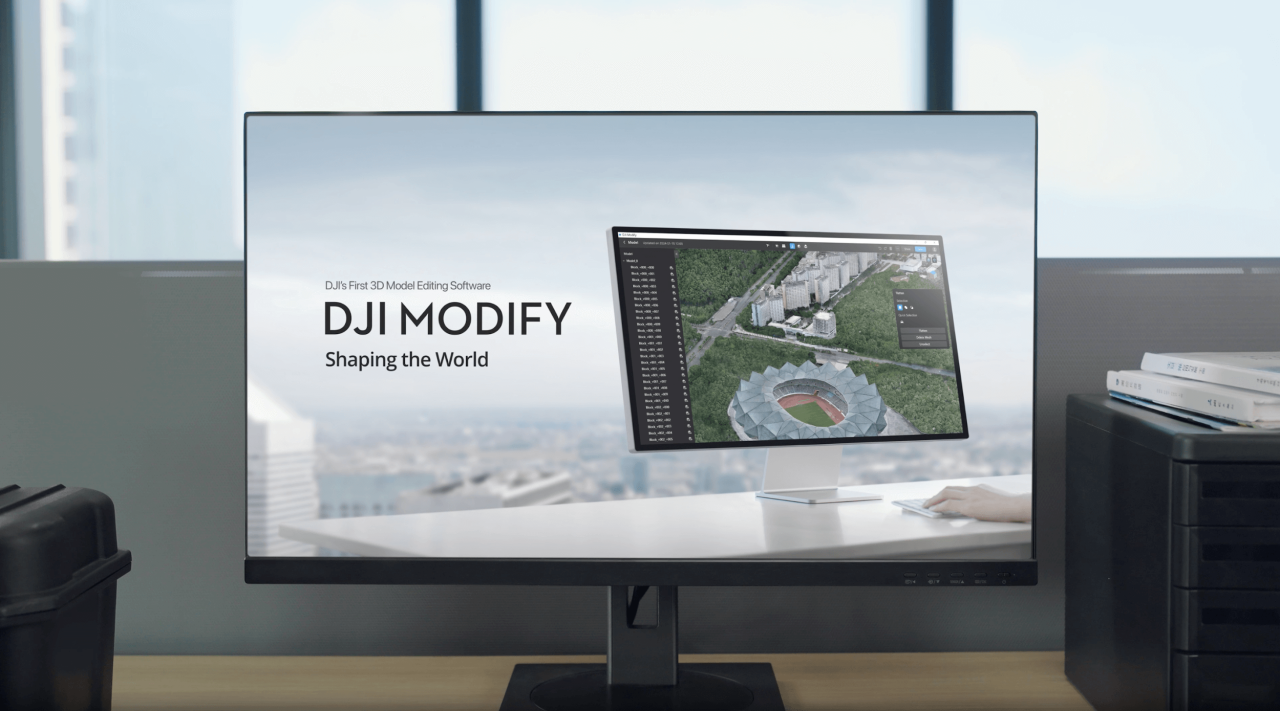
Modifying existing STL files is a fundamental skill in 3D printing and digital fabrication. The choice of software significantly impacts the ease, precision, and capabilities of these modifications. Fortunately, a diverse range of tools is available, catering to various skill levels and project complexities, from simple edits to intricate design alterations.Understanding the landscape of available software empowers you to select the most appropriate tool for your specific needs, ensuring efficient and effective manipulation of your 3D models.
This section will explore the essential software options, highlighting their strengths and guiding you toward a suitable choice.
Popular Free and Open-Source STL Editing Software
For individuals and organizations seeking cost-effective solutions, a variety of powerful free and open-source software packages are available. These tools offer robust functionalities that can handle most common STL modification tasks, making 3D modeling accessible to a wider audience.Here are some of the most popular and capable options, along with their key strengths:
- Meshmixer: Developed by Autodesk, Meshmixer is a highly regarded free software for editing, sculpting, and analyzing 3D meshes. It excels at tasks like repairing STL files, sculpting organic shapes, adding features, and preparing models for 3D printing. Its intuitive interface and powerful tools make it a favorite for many users.
- Blender: While primarily a comprehensive 3D creation suite, Blender is an exceptionally powerful free and open-source tool that can handle extensive STL modifications. Its modeling, sculpting, and editing tools are top-tier. Although it has a steeper learning curve than Meshmixer, its versatility is unparalleled for complex edits and creative modifications.
- FreeCAD: This is a parametric 3D modeler that is also open-source. FreeCAD is particularly well-suited for mechanical designs and engineering projects. Its ability to import and export STL files, combined with its parametric modeling approach, allows for precise and editable modifications.
- Tinkercad: For beginners, Tinkercad offers a simple, web-based platform that is incredibly easy to learn. It uses a drag-and-drop interface with basic shapes that can be combined and subtracted to create and modify models. While not as powerful for complex sculpting or detailed mesh editing as other options, it’s excellent for straightforward modifications and combining existing STL parts.
Professional 3D Modeling Software for STL Manipulation
Professional 3D modeling software offers advanced features, precision, and workflows that are essential for complex design, engineering, and manufacturing applications. These tools often come with a significant cost but provide capabilities that are unmatched by free alternatives for demanding tasks.These professional suites are designed for users who require high levels of control, accuracy, and integration with other design and manufacturing processes.
Their functionalities extend far beyond basic STL editing, encompassing the entire product development lifecycle.
- Fusion 360: A cloud-based platform from Autodesk, Fusion 360 combines CAD, CAM, CAE, and PCB software in a single application. It excels at parametric modeling, direct modeling, and sculpting, making it highly versatile for modifying STL files, especially for product design and engineering. Its integrated simulation and manufacturing tools are also a significant advantage.
- SolidWorks: A leading professional CAD software, SolidWorks is renowned for its robust parametric modeling capabilities, used extensively in mechanical design and product engineering. It allows for precise modifications to imported STL files, treating them as reference geometry or converting them for further parametric manipulation.
- Rhino 3D: Known for its powerful NURBS modeling capabilities, Rhino 3D is a popular choice for industrial design, architecture, and jewelry design. It offers extensive tools for manipulating complex surfaces and meshes, making it excellent for intricate STL modifications and surfacing tasks.
- ZBrush: While primarily a digital sculpting tool, ZBrush is unparalleled for organic modeling and high-detail sculpting. It is frequently used to refine and add intricate details to STL models, especially for character design, concept art, and detailed sculptures.
Installing and Setting Up a Beginner-Friendly STL Editing Application
To get started with modifying STL files without a steep learning curve, it’s beneficial to begin with a user-friendly application. Tinkercad is an excellent choice for this purpose due to its accessible web-based interface and straightforward approach.Here’s a step-by-step guide to installing and setting up Tinkercad:
- Navigate to the Tinkercad Website: Open your preferred web browser and go to the official Tinkercad website: www.tinkercad.com.
- Create an Account: Click on the “Sign Up” button. You can create a new account using your email address or sign in with a Google or Apple account. Follow the on-screen prompts to complete the registration process.
- Access the Design Workspace: Once logged in, you will be directed to your dashboard. Click on the “Create new design” button to open the 3D modeling workspace.
- Import Your STL File: In the top-right corner of the workspace, you will see an “Import” button. Click on it, then click “Choose File” and select the STL file you wish to modify from your computer. Tinkercad will then load the STL file into your design.
- Begin Modifying: You can now start modifying your imported STL file using the basic shapes provided on the right side of the screen. Drag shapes onto the workplane, resize them, move them, and use the “Hole” option to subtract them from your model. You can also group objects to combine them.
Parametric vs. Direct Modeling Software for STL Modifications
The approach to modeling, whether parametric or direct, significantly influences how you modify STL files and the flexibility you have in future revisions. Understanding the differences is crucial for choosing the right software for your workflow.Parametric and direct modeling represent two distinct paradigms in 3D design, each offering unique advantages for manipulating existing geometry, including STL files.
- Parametric Modeling: In parametric modeling, the design is driven by a history of operations and relationships. When you modify a parameter (e.g., a dimension, an angle), the entire model updates accordingly. This makes it excellent for engineering designs where changes are frequent and require precise control. For STL files, this often involves converting the mesh into a more structured, editable format, which can sometimes be challenging or result in loss of detail if the STL is highly complex.
The advantage is that subsequent modifications are highly controlled and predictable.
- Direct Modeling: Direct modeling allows you to directly push, pull, and manipulate faces, edges, and vertices of a 3D model without relying on a historical tree of operations. This approach is more intuitive for organic shapes and quick edits. When working with STL files, direct modeling software can often manipulate the mesh geometry more directly, making it ideal for tasks like sculpting, smoothing, or adding simple features to an existing STL.
However, it may lack the inherent design intent and change management capabilities of parametric modeling for highly engineered parts.
The choice between parametric and direct modeling for STL modifications often depends on the nature of the modification and the intended use of the final model. For engineering components requiring precise dimensional control and future adaptability, parametric modeling is preferred. For artistic sculpting, rapid prototyping, or quick aesthetic adjustments, direct modeling offers greater agility.
Basic Modification Techniques
Once you have a foundational understanding of STL files and the necessary software, you can begin exploring the core techniques for modifying existing models. These techniques range from simple geometric adjustments to more complex mesh manipulations and repairs, all essential for preparing your models for 3D printing or further design work.This section will guide you through the fundamental operations that form the backbone of STL file editing.
Mastering these will empower you to tailor your models to specific requirements and overcome common challenges encountered in the 3D modeling workflow.
Geometric Transformations
Geometric transformations are fundamental operations that alter the position, orientation, and size of an STL model without changing its underlying geometry. These are often the first steps in preparing a model for its intended application.
The most common geometric transformations include:
- Scaling: This process adjusts the overall size of the model. You can uniformly scale the model along all axes to increase or decrease its dimensions proportionally, or non-uniformly scale it along specific axes to alter its aspect ratio. For instance, scaling a miniature figurine by a factor of 0.5 will reduce its size by half, while scaling a large architectural model by a factor of 2 will double its dimensions.
- Rotation: Rotation changes the orientation of the model in 3D space. Models can be rotated around any of the X, Y, or Z axes by a specified angle. This is crucial for orienting a model correctly on the build plate of a 3D printer or for aligning it with other components in an assembly. For example, rotating a base component by 90 degrees around the Z-axis might be necessary to fit it into a specific housing.
- Translation: Translation involves moving the model from its current position to a new location in 3D space. This is achieved by specifying a displacement vector along the X, Y, and Z axes. Moving a model so its base is at the origin (0,0,0) is a common translation operation, ensuring it starts printing from the correct reference point.
Mesh Manipulation: Cutting, Splitting, and Merging
Beyond simple transformations, you can fundamentally alter the structure of an STL mesh by cutting, splitting, or merging different parts. These operations are vital for creating complex geometries or preparing models for multi-material printing.
The processes involved in mesh manipulation are:
- Cutting and Splitting: This involves dividing a single STL model into two or more separate parts. A common method is to use a cutting plane. For example, if you have a large object that exceeds the build volume of your 3D printer, you can cut it into smaller, manageable sections that can be printed individually and then assembled. Some software allows for splitting based on geometric features or even by manually defining cut lines.
- Merging: Merging involves combining two or more separate STL files into a single, cohesive model. This is frequently used when you have designed individual components that need to be joined together. For instance, you might merge a character model with a separate base it stands on, or combine multiple parts of a larger assembly. The software will typically align and fuse the meshes at their contact points.
STL Error Repair
STL files, especially those generated from scans or complex modeling processes, can often contain errors that prevent them from being successfully processed by slicing software or 3D printers. Identifying and repairing these issues is a critical part of the modification workflow.
Common STL errors and their repair methods include:
- Holes: These are gaps in the mesh where faces are missing. Holes can be automatically filled by many software tools, which will generate new faces to close the gaps. Manually patching holes might be necessary for complex or irregularly shaped openings.
- Non-manifold Edges: These are edges where more than two faces meet, or where a face is connected to itself. Non-manifold geometry often leads to printing failures. Software can often detect and automatically repair these by adjusting the connectivity of the faces.
- Inverted Normals: Normals define the outward-facing direction of a mesh face. When normals are inverted, the software interprets the inside of the model as the outside, leading to rendering issues and printing problems. Most repair tools can recalculate and correct normal directions for the entire mesh or specific faces.
“A manifold mesh is essential for watertight 3D models, ensuring that the interior and exterior are clearly defined.”
Adding and Removing Simple Features
Once the mesh is clean and structurally sound, you can add or remove simple geometric features to customize the model. This allows for functional modifications or aesthetic enhancements.
A typical workflow for adding or removing features involves:
- Identifying the Target Area: Determine the specific location on the existing STL model where the feature will be added or removed.
- Creating or Selecting the Feature Geometry: For adding features, this might involve creating basic shapes like cylinders (for holes), cubes (for bosses), or chamfer profiles. For removal, you might define the shape of the area to be subtracted.
- Boolean Operations: Most software uses Boolean operations to integrate new geometry with the existing mesh.
- Adding a Hole: A common method is to perform a “Boolean Subtract” operation, where a cylinder is subtracted from the main model.
- Adding a Boss: This is typically achieved with a “Boolean Union” operation, where a cylindrical or cuboid shape is added to the surface of the model.
- Adding a Chamfer: While some software has dedicated chamfer tools, a common approach is to create a triangular prism and use a Boolean Union, or to use specialized beveling tools that can create angled surfaces.
- Mesh Cleanup: After performing Boolean operations, it’s often necessary to clean up the resulting mesh to ensure it remains manifold and free of artifacts.
Advanced Modification Strategies

Once you have a grasp of the fundamental techniques for modifying STL files, you can unlock a new level of creative potential by exploring advanced strategies. These methods allow for the creation of highly customized and complex designs, pushing the boundaries of what’s possible with 3D modeling and printing. This section will guide you through sophisticated techniques that leverage the power of combining, manipulating, and sculpting existing mesh data.
Preparing Modified STLs for 3D Printing
After you’ve made your desired modifications to an STL file, the crucial next step is to ensure it’s ready for the 3D printing process. This involves a series of checks and optimizations to guarantee a successful and high-quality print. Failing to properly prepare your STL can lead to printing errors, failed prints, or subpar results. This section will guide you through the essential steps to get your modified STL ready for the slicer.
Illustrative Examples of Modifications

This section provides practical, step-by-step examples of how to modify existing STL files, demonstrating the versatility of these techniques across various applications. By walking through these scenarios, you’ll gain a deeper understanding of how to translate conceptual modifications into tangible changes in your 3D models.
Personalized Inscription on an Object
Adding a personalized inscription, such as a name or a date, to an existing STL model is a common and rewarding modification. This process typically involves importing the STL into your chosen CAD software, creating the text, and then merging it with the existing geometry.
- Import the STL: Load the STL file of the object (e.g., a trophy base, a key fob) into your 3D modeling software (e.g., Tinkercad, Fusion 360, Blender).
- Create the Text: Use the text tool within the software to type the desired inscription. Choose a suitable font and adjust the size, spacing, and depth of the text. For embossed text (raised from the surface), ensure the text is sufficiently thick. For debossed text (cut into the surface), ensure it has enough depth to be clearly visible after printing.
- Position the Text: Carefully place the text onto the surface of the STL model where you want it to appear. Align it precisely to ensure it looks natural and integrated with the object’s design.
- Combine Geometries: This is the crucial step. Depending on whether you want to emboss or deboss, you will use different boolean operations.
- For Embossing: Use a “Union” or “Add” operation to merge the text geometry with the object’s geometry. This effectively adds the text as a raised feature.
- For Debossing: Use a “Subtract” or “Difference” operation. The text geometry will be used as a cutting tool to remove material from the object’s surface.
- Repair and Export: After combining, it’s essential to check for any non-manifold edges or other errors. Most software has tools to repair the mesh. Once the model is clean, export it as a new STL file.
Adapting a Generic Model for Specific Dimensions
Modifying a generic STL to fit precise dimensions is vital for functional parts where tolerances are critical. This often involves scaling, stretching, or precisely cutting sections of the model.Imagine needing to create a custom bracket to hold a specific electronic component that has slightly non-standard dimensions.
- Measure and Define Requirements: Accurately measure the component and determine the exact dimensions the bracket needs to accommodate. Note any mounting hole positions or clearances required.
- Import and Reference: Import the generic bracket STL. If possible, import the STL of the component itself or create a simple block representing its dimensions within your modeling software to use as a visual reference.
- Scaling and Resizing:
- Uniform Scaling: If the generic bracket is proportionally similar but just needs to be larger or smaller, use uniform scaling.
- Non-Uniform Scaling/Stretching: If specific dimensions need to be altered independently (e.g., making a slot wider without changing its length), use non-uniform scaling or direct manipulation of vertices/faces.
- Cutting and Extruding: If a section needs to be precisely cut to size, use cutting planes and then extrude faces to achieve the exact length or depth required.
- Adding Features: If the generic model lacks specific features like mounting holes or alignment pins, use the software’s modeling tools to create and add these features, ensuring they are positioned accurately based on your measurements.
- Verification: After modifications, carefully re-measure critical dimensions within the software and compare them against your requirements. Ensure all parts of the model are manifold and printable.
- Export: Save the modified STL file.
Custom Housing for an Electronic Component
Creating a custom enclosure for electronics requires careful consideration of component placement, ventilation, cable management, and mounting points.Consider designing a bespoke housing for a Raspberry Pi Zero, including space for a small battery pack and a specific sensor.
- Gather Component Dimensions: Obtain the exact dimensions of the Raspberry Pi Zero, the battery pack, and the sensor. Note the location of all ports, mounting holes, and any heat-generating components.
- Basic Box Creation: Start by creating a basic rectangular box that will serve as the outer shell of the housing. Ensure it’s large enough to accommodate all components with some clearance.
- Component Placement and Cutouts:
- Import STLs of the components or create simple representations.
- Position these representations within the box to visualize the layout.
- Use boolean subtraction to create precise cutouts for ports (USB, HDMI, power), ventilation openings, and mounting holes for the Raspberry Pi and other components.
- Internal Supports and Features: Add internal standoffs or bosses to securely mount the Raspberry Pi, battery, and sensor. These are typically small cylindrical or rectangular protrusions.
- Lid Design: Create a separate lid for the housing. This can be a simple flat piece with a lip that fits over the base, or it can incorporate features like a cutout for a button or an access panel.
- Assembly Mechanism: Design a way for the two halves to connect. This could involve screw bosses and holes, snap-fit mechanisms, or a simple friction fit.
- Cable Management: If necessary, add internal channels or clips to organize wiring.
- Final Checks: Ensure all clearances are adequate, wall thicknesses are printable, and the overall design is structurally sound.
- Export: Export the housing base and lid as separate STL files.
Improving Structural Integrity for a Specific Application
Modifying an STL to enhance its structural integrity is crucial for parts subjected to stress or load-bearing applications. This often involves thickening walls, adding reinforcing ribs, or changing the overall shape to distribute stress more effectively.Imagine a drone propeller that frequently breaks under high G-forces.
- Analyze Failure Points: Examine the existing propeller design, identify areas prone to stress concentration or breakage. This might involve visual inspection of broken parts or understanding the forces involved in drone flight.
- Import and Assess: Load the propeller STL into your modeling software. Assess the current wall thickness and identify sections that could benefit from reinforcement.
- Methods for Reinforcement:
- Thickening Walls: Select the faces of the propeller blades and extrude them outwards slightly to increase wall thickness. This is a straightforward way to add material strength.
- Adding Ribs: Design and add reinforcing ribs along the length or across the surface of the blades. These are thin, raised structures that significantly increase stiffness and strength by preventing flex. They can be modeled as separate extrusions or by sculpting them directly onto the blade surface.
- Filleting and Chamfering: Add fillets (rounded edges) to internal corners and chamfers (beveled edges) to external corners where stress is likely to concentrate. Sharp corners are natural weak points.
- Optimizing Shape: In more complex scenarios, you might consider subtly altering the airfoil shape of the propeller blades to improve aerodynamic efficiency and simultaneously reduce stress points.
- Material Considerations: While modifying the STL, keep in mind the material you intend to print with. A stronger material might require less aggressive reinforcement than a more brittle one.
- Iterative Design and Testing: It’s often an iterative process. You might reinforce the propeller, export it, print it, and test it. If it still fails, analyze the new failure points and make further modifications.
- Export: Save the reinforced propeller STL.
Troubleshooting Common Modification Challenges
Embarking on STL file modifications, especially with intricate or highly detailed models, can sometimes present unexpected hurdles. Understanding these common challenges and having a strategic approach to resolving them is crucial for a successful and efficient workflow. This section aims to equip you with the knowledge to navigate these difficulties and ensure your modified models meet your desired specifications.
Complex or Highly Detailed STL File Issues and Solutions
Modifying STL files that feature a high level of geometric complexity or fine details can lead to several problems, primarily related to data integrity and processing load. These issues often stem from the STL’s inherent nature as a mesh of triangles, where dense triangulation can make operations cumbersome.
- Mesh Inconsistencies: Highly detailed models can sometimes have overlapping faces, non-manifold edges, or holes within the mesh. These inconsistencies can prevent boolean operations or other modifications from executing correctly.
- Solution: Utilize mesh repair tools within your modeling software or dedicated mesh repair utilities. These tools can automatically detect and fix common errors like holes, inverted normals, and self-intersections. For manual correction, carefully examine problematic areas in wireframe mode and manually adjust vertices or faces.
- Performance Degradation: A very high polygon count significantly impacts the responsiveness of modeling software. Operations that would be instantaneous on simpler models can become extremely slow, leading to frustration and lost productivity.
- Solution: Employ mesh simplification or decimation techniques. These processes reduce the number of triangles in the mesh while attempting to preserve the overall shape and key features. It’s important to find a balance between reducing polygon count and maintaining necessary detail.
Consider working on a simplified version for initial modifications and then re-introducing detail later if required.
- Solution: Employ mesh simplification or decimation techniques. These processes reduce the number of triangles in the mesh while attempting to preserve the overall shape and key features. It’s important to find a balance between reducing polygon count and maintaining necessary detail.
- Loss of Fine Features: Aggressive simplification or poorly executed repair operations can inadvertently remove or blur delicate features like sharp edges, small protrusions, or engraved text.
- Solution: When simplifying, use algorithms that prioritize edge preservation. For repairs, employ tools that allow for selective fixing or manual intervention. If fine details are critical, consider isolating those areas, performing modifications on the rest of the model, and then re-attaching or re-sculpting the detailed sections.
Handling Distorted or Corrupted STL Data
Corrupted or distorted STL data can render a file unusable for modification or 3D printing. These issues can arise from incomplete downloads, export errors, or data transmission problems.
- Causes of Corruption:
- Incomplete file transfers or saving errors.
- Software bugs during export from CAD or scanning software.
- Data errors introduced during previous, unsuccessful modification attempts.
- Strategies for Recovery:
- Re-export or Re-download: The simplest solution is often to obtain a fresh copy of the STL file from its original source. This can resolve transient corruption issues.
- Automated Mesh Repair: Many 3D modeling and slicing software packages include built-in mesh repair functions. These tools can automatically identify and correct common STL errors such as holes, flipped normals, and disconnected components. For example, software like Meshmixer or Netfabb offers robust repair capabilities.
- Manual Correction: For severe corruption, manual intervention may be necessary. This involves visually inspecting the mesh for anomalies, such as disconnected vertices, internal faces, or geometric impossibilities. Software like Blender or Fusion 360 allows for detailed mesh editing to fix these issues vertex by vertex or face by face.
- Import and Re-export: Sometimes, simply importing a corrupted STL into a different modeling program and then re-exporting it as a new STL can resolve minor data integrity issues.
Maintaining Model Accuracy and Detail When Scaling or Resizing
Scaling or resizing an STL file is a common modification, but it can lead to a loss of accuracy or detail if not handled carefully, especially when dealing with very small or very large scale changes.
- Understanding STL Geometry: STLs are tessellated, meaning they are composed of flat triangles. When you scale a model, the software scales the coordinates of all the vertices. This process, in itself, doesn’t inherently lose detail if the resolution of the original mesh is sufficient. However, the
-perceived* detail can change. - Scaling Down:
- Challenge: If you scale a model down significantly, fine features may become smaller than the resolution limit of your 3D printer’s nozzle or the visual acuity of the intended application. Small details might disappear or become indistinct.
- Solution: Before scaling down, consider whether the fine details are essential at the smaller size. If they are, you may need to re-engineer or thicken them in the original CAD model before exporting to STL, or use specialized tools to artificially thicken features in the STL itself. Always check the scaled model’s features against your printer’s capabilities.
- Scaling Up:
- Challenge: Scaling up can reveal the limitations of the original mesh’s resolution. If the original STL was created with a low polygon count, scaling it up will simply make the existing triangles larger, resulting in a visibly faceted or “blocky” appearance, rather than a smoother, more detailed object.
- Solution: For significant scaling up, it’s often better to return to the original CAD model if possible and increase its complexity or resolution before exporting. If only the STL is available, you can use subdivision surface modifiers or remeshing techniques in software like Blender or ZBrush to add more geometry and create a smoother, higher-detail mesh at the larger scale.
- Maintaining Proportions: Ensure uniform scaling is applied across all axes (X, Y, Z) unless you specifically intend to distort the model’s proportions. Most software offers a “uniform scaling” option to prevent unintended stretching or squashing.
Resolving Performance Issues with Large STL Files
Working with STL files that contain millions of triangles can overwhelm even powerful computer hardware, leading to slow performance, frequent crashes, and an unresponsive user interface. Effective management of these large files is crucial for productivity.
- Causes of Performance Bottlenecks:
- Excessive polygon count (millions of triangles).
- Complex geometric operations on dense meshes.
- Insufficient RAM or processing power on the workstation.
- Inefficient software algorithms for handling large datasets.
- Strategies for Improved Performance:
- Mesh Simplification/Decimation: As mentioned earlier, reducing the polygon count is often the most effective method. Use aggressive but intelligent decimation algorithms that preserve critical features. For example, tools like Simplygon or the decimation master in ZBrush are designed for this purpose.
- Hardware Upgrade: If performance issues are persistent and significant, consider upgrading your computer’s RAM and graphics card. More RAM allows the software to load and process larger datasets more efficiently, while a better GPU can accelerate viewport rendering and mesh manipulation.
- Software Optimization:
- Close unnecessary applications to free up system resources.
- Ensure your modeling software is up-to-date, as newer versions often include performance improvements.
- Utilize software features designed for large datasets, such as level-of-detail (LOD) systems or optimized viewport rendering settings.
- Working with Parts: For extremely large assemblies or complex single models, consider breaking them down into smaller, manageable components. Perform modifications on individual parts and then reassemble them. This strategy can significantly reduce the processing load at any given time.
- Cloud Computing: For exceptionally demanding tasks, consider using cloud-based rendering or modeling services. These platforms offer access to high-performance computing resources that can handle very large files and complex calculations without taxing your local machine.
Conclusion
In summary, transforming an existing STL file is an accessible and rewarding endeavor with the right knowledge and tools. By understanding STL file structures, leveraging appropriate software, and applying various modification techniques, you can effectively personalize and optimize your 3D models. The ability to troubleshoot common issues and prepare files for printing ensures that your creative vision can be realized with precision and success, empowering you to tackle a wide range of 3D design projects.