Embark on an exciting journey into the world of 3D printing with Tinkercad, your intuitive gateway to digital creation. This comprehensive guide is designed to transform your ideas into tangible objects, making the process accessible and enjoyable for everyone. From understanding the fundamental purpose of Tinkercad to navigating its user-friendly interface, we will equip you with the knowledge and skills needed to begin your 3D modeling adventure.
We will delve into setting up your Tinkercad environment, mastering basic modeling techniques, and seamlessly importing and exporting your designs for printing. You’ll discover how to work with text and custom shapes, understand the importance of precise measurements, and bring your creations to life with color and materials. Furthermore, we will explore Tinkercad’s vibrant community and valuable resources to help you grow your skills and share your innovations.
Introduction to Tinkercad and 3D Printing
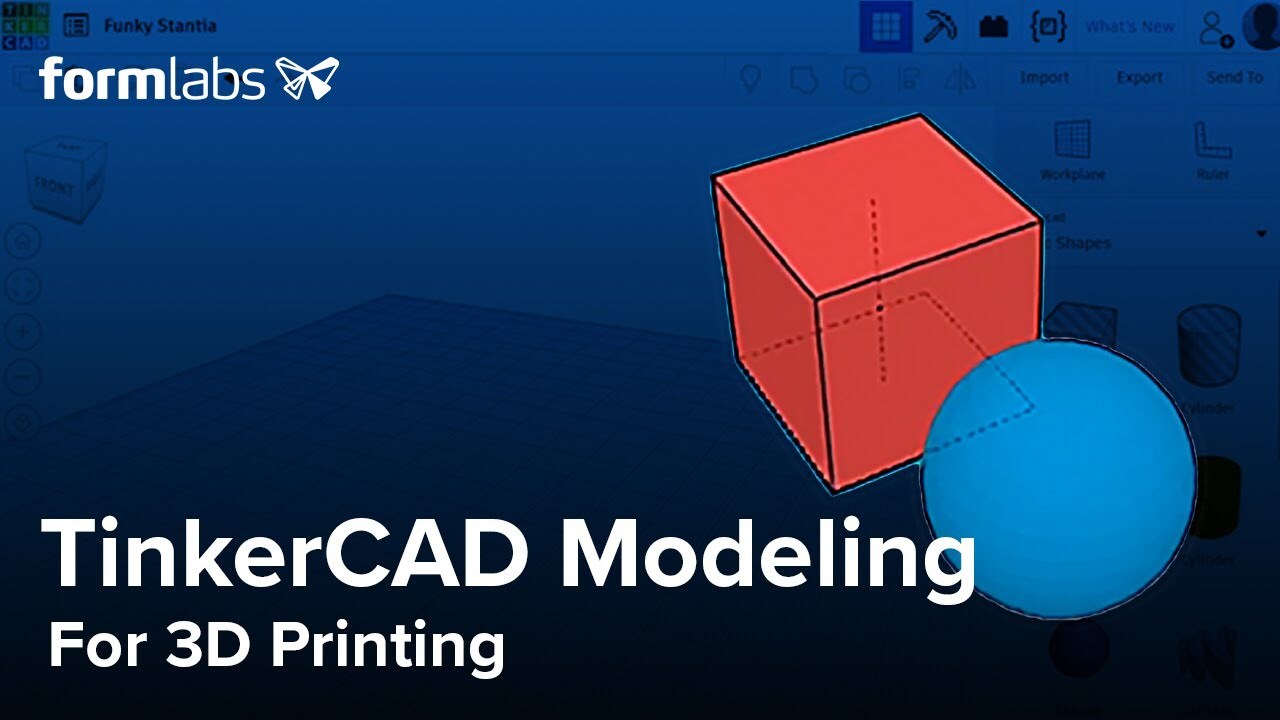
Welcome to the exciting world of 3D printing! Tinkercad is your gateway to bringing digital designs into the physical realm. It’s a free, web-based 3D design tool that simplifies the creation of printable models, making it accessible even for those with no prior design experience. This guide will walk you through the essentials of getting started with Tinkercad, setting you on the path to designing and printing your own creations.Tinkercad’s primary purpose is to democratize 3D design by providing an intuitive platform for users to build objects from basic shapes.
It empowers individuals to conceptualize, design, and prepare models for 3D printing without the steep learning curve associated with professional CAD software. The benefits of using Tinkercad for creating printable models are numerous, including its ease of use, extensive library of pre-made shapes, and direct export options for 3D printers.
Accessing and Navigating the Tinkercad Interface
To begin your Tinkercad journey, the first step is to access the platform and familiarize yourself with its layout. Tinkercad is entirely web-based, meaning you can use it from any computer with an internet connection.The initial steps to access Tinkercad involve visiting the official Tinkercad website and creating a free account. Once logged in, you will be presented with your dashboard, which displays your existing projects and provides options to create new designs.
The workspace, often referred to as the “Workplane,” is where all your design activities will take place.
Essential Components and Tools in the Tinkercad Workspace
The Tinkercad workspace is designed for clarity and efficiency, offering a range of tools and components to facilitate your design process. Understanding these elements is crucial for effective model creation.The Tinkercad workspace can be broken down into several key areas:
- The Workplane: This is the central area where you will build your 3D models. It’s a flat surface that represents the build plate of a 3D printer.
- The Shape Panel: Located on the right side of the screen, this panel contains a vast library of basic geometric shapes (cubes, spheres, cylinders, etc.) and more complex, pre-designed components that you can drag and drop onto the Workplane.
- The Toolbar: Situated at the top of the screen, this toolbar provides essential functions for manipulating your design, including undo/redo, zoom, pan, and object alignment.
- The Inspector Panel: When an object is selected, this panel appears on the right side and allows you to modify its properties, such as size, color, and position.
- The Edit Menu: This menu, typically found on the top right, offers options for grouping, aligning, mirroring, and duplicating selected objects.
To effectively use these components, consider the following:
The Shape Panel is your primary source for building blocks. You can drag any shape from this panel onto the Workplane. Once a shape is on the Workplane, you can resize it by clicking and dragging the white squares at its corners or edges. The black cone allows you to adjust its height.
“Simplicity is the ultimate sophistication.”Leonardo da Vinci. Tinkercad embodies this principle by offering a straightforward approach to complex 3D modeling.
The Toolbar and Edit Menu are vital for refining your designs. For instance, the “Align” tool is invaluable for precisely positioning multiple objects relative to each other, ensuring your models are structurally sound and aesthetically pleasing. The “Group” function combines multiple shapes into a single object, simplifying manipulation and preventing accidental dislodging of components.
Setting Up Your Tinkercad Environment
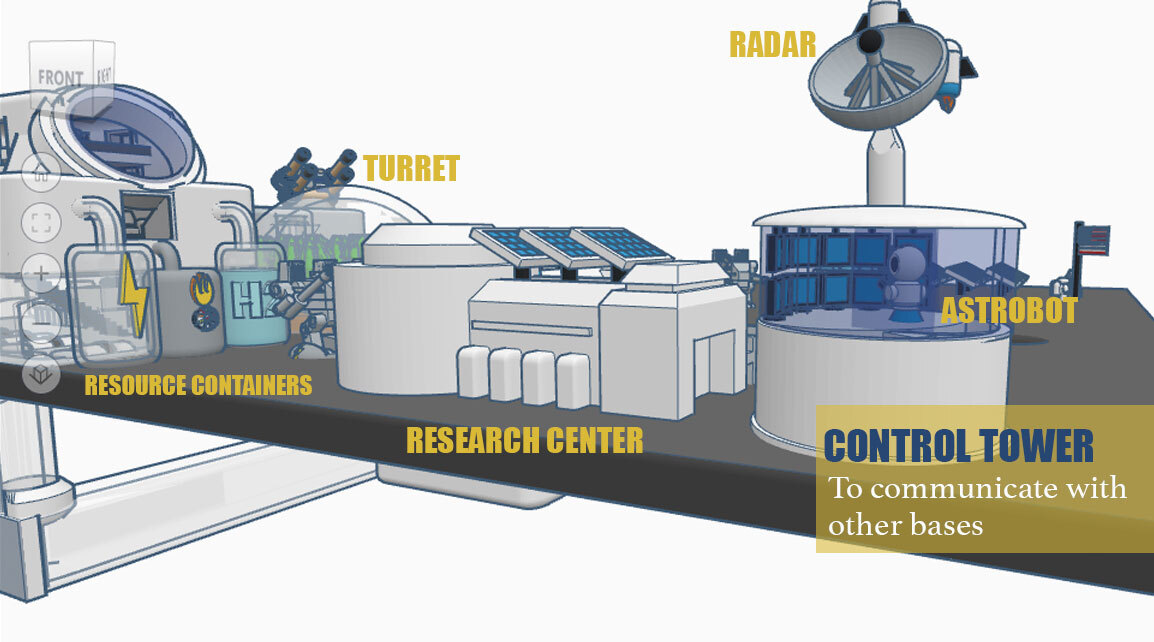
Welcome to the practical part of our Tinkercad journey! Having understood the basics of Tinkercad and 3D printing, it’s now time to get your hands dirty and set up your digital workspace. This section will guide you through creating your account, initiating your first project, and mastering the tools that will bring your designs to life on the 3D canvas.A well-configured environment is crucial for an efficient and enjoyable design process.
Tinkercad is designed to be user-friendly, and understanding its core components will allow you to navigate and create with confidence. We’ll cover everything from the initial login to the essential navigation controls.
Tinkercad Account Creation
To begin using Tinkercad, you’ll need to create a free account. This account will save your projects and allow you to access them from any device. The process is straightforward and takes only a few minutes.Follow these steps to create your Tinkercad account:
- Navigate to the Tinkercad website by typing tinkercad.com in your web browser.
- On the homepage, locate and click the “Sign In” button, usually found in the top-right corner.
- Since you’re a new user, select the “Create a free account” option.
- You will be presented with several sign-up methods. The most common and recommended is to “Create an account with email.”
- Enter your date of birth. Tinkercad requires this to ensure compliance with online privacy regulations.
- Provide a valid email address and create a secure password.
- Choose a unique username. This will be your identifier within the Tinkercad community.
- Agree to the Terms of Service and Privacy Statement by checking the respective boxes.
- Click the “Create Account” button to finalize the registration.
- You may need to verify your email address by clicking a link sent to your inbox.
New Project Setup
Once your account is created and you’ve logged in, you’ll be taken to your Tinkercad dashboard. From here, you can start creating new designs. Setting up a new project is the gateway to your modeling adventures.Here’s how to initiate a new project:
- On your Tinkercad dashboard, you will see a prominent button that says “Create new design.” Click this button.
- This action will open a new, blank 3D workspace, often referred to as the “Workplane.”
- Your new project is automatically saved as “My First Design” (or a similar default name). You can rename your project by clicking on the default name at the top of the screen and typing in your desired title.
View Modes and Navigation Controls
The 3D canvas in Tinkercad is your primary workspace. Understanding how to move around and view your design from different angles is fundamental to effective modeling. Tinkercad provides intuitive controls for this purpose.The primary navigation tool is the “View Cube,” typically located in the top-left corner of the screen.
- View Cube: This cube allows you to click on its faces, edges, or corners to snap your view to specific perspectives (e.g., top, front, right, isometric).
- Orbit: Click and drag on an empty area of the Workplane to rotate your view around the center of your design.
- Pan: Hold down the right mouse button (or the middle mouse button/scroll wheel) and drag to move your view side-to-side or up-and-down without rotating.
- Zoom: Use your mouse scroll wheel to zoom in and out of your design. Alternatively, you can click and drag the zoom tool (magnifying glass icon) on the View Cube.
Tinkercad also offers different view modes to enhance your experience:
- 3D View: This is the default view, allowing you to see your design in three dimensions.
- Flat: This view simplifies the visual representation, making it easier to focus on specific shapes and their alignment on the Workplane. You can toggle between 3D and Flat view using the buttons near the View Cube.
Common Keyboard Shortcuts for Efficient Modeling
To significantly speed up your design process, familiarizing yourself with keyboard shortcuts is highly recommended. These shortcuts allow you to perform common actions quickly without needing to navigate menus or click icons.Here is a list of frequently used keyboard shortcuts that will enhance your modeling efficiency:
- Ctrl + C (or Cmd + C on Mac): Copy selected object(s).
- Ctrl + V (or Cmd + V on Mac): Paste copied object(s).
- Ctrl + D (or Cmd + D on Mac): Duplicate selected object(s). This is incredibly useful for creating patterns or multiple identical components.
- Delete: Delete selected object(s).
- Ctrl + Z (or Cmd + Z on Mac): Undo the last action.
- Ctrl + Y (or Cmd + Y on Mac): Redo an action that was just undone.
- F: Frame all objects on the Workplane, centering them in your view.
- Shift + F: Frame the selected object(s), centering them in your view.
- Arrow Keys: Move selected object(s) incrementally.
- Shift + Arrow Keys: Move selected object(s) in larger increments.
- G: Group selected objects. This combines multiple shapes into a single object.
- U: Ungroup selected objects. This separates a grouped object back into its individual components.
- L: Align selected objects. This opens the alignment tool, allowing you to position objects relative to each other.
- R: Make selected object(s) transparent.
- M: Mirror selected object(s).
Basic Tinkercad Modeling Techniques
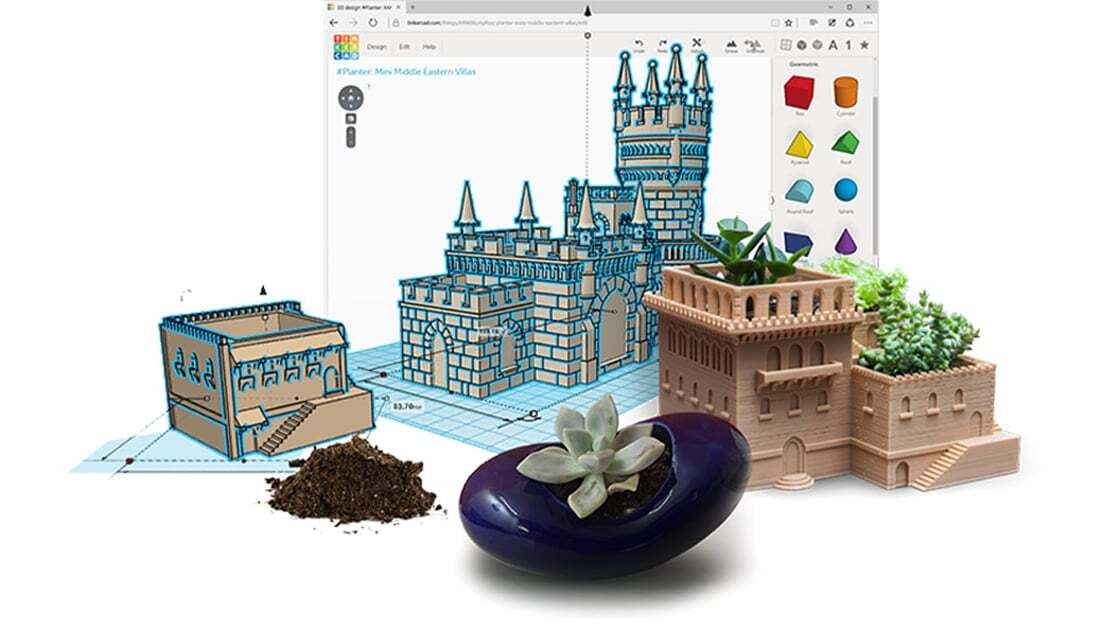
Welcome to the exciting world of creating 3D models in Tinkercad! This section will guide you through the fundamental tools and techniques that form the backbone of any design you wish to bring to life. By mastering these basics, you’ll gain the confidence to translate your ideas into tangible objects.Tinkercad simplifies 3D modeling by providing intuitive tools that allow you to build and sculpt objects with ease.
We’ll start with the building blocks and progress to more intricate manipulations, setting you up for success in your 3D printing journey.
Adding and Manipulating Primitive Shapes
The foundation of most Tinkercad designs lies in its collection of primitive shapes. These are basic geometric forms that you can readily add to your workplane and then modify to suit your needs. Understanding how to select, place, and interact with these primitives is the first crucial step in the modeling process.Tinkercad offers a variety of common geometric shapes. To add a shape, simply click and drag it from the “Basic Shapes” panel on the right side of the screen onto your workplane.
Once placed, you can select a shape by clicking on it. Selected shapes will be highlighted with a bounding box, and handles will appear, allowing for immediate manipulation.
- Cubes: Ideal for creating rectangular structures, walls, or basic building blocks.
- Spheres: Perfect for rounded elements, wheels, or decorative additions.
- Cylinders: Useful for creating posts, pipes, or cylindrical components.
- Cones: Suitable for pointed or tapering elements.
- Pyramids: Good for creating angled roofs or structural supports.
Combining and Subtracting Shapes (Boolean Operations)
To move beyond simple shapes and create more complex forms, Tinkercad utilizes powerful Boolean operations. These operations allow you to merge shapes together or use one shape to cut away from another, effectively sculpting your desired object.The two primary Boolean operations in Tinkercad are “Group” and “Hole.”
- Grouping: This operation merges selected shapes into a single, unified object. Any color differences between the original shapes will be resolved into a single color for the grouped object. To group, select all the shapes you want to combine, then click the “Group” button in the toolbar.
- Subtracting (using Holes): This is where the magic of cutting and hollowing happens. You can turn any shape into a “hole” by selecting it and clicking the “Hole” button in the inspector window that appears when a shape is selected. Once you have a shape designated as a hole, you can position it over another solid shape. When you then group the solid shape and the hole shape, the area occupied by the hole will be removed from the solid shape, creating a cutout.
This is essential for creating cavities, windows, or intricate internal structures.
Resizing, Rotating, and Aligning Objects Precisely
Achieving accurate and professional-looking models requires precise control over the size, orientation, and placement of your objects. Tinkercad provides intuitive tools for these essential manipulations.When an object is selected, a bounding box with handles will appear. These handles are key to resizing and rotating.
- Resizing: Click and drag the white corner handles to uniformly scale the object. Dragging the white square handles on the faces will scale along one axis. To resize precisely, select the object and then click on the white dimension boxes that appear. You can then type in the exact numerical values for width, length, and height.
- Rotating: When an object is selected, you will see curved arrow handles. Clicking and dragging these handles will rotate the object. For more precise rotation, click on the curved arrow handle, and a degree indicator will appear. You can then type in a specific angle or use the snap rotation setting (found in the “Edit Grid” menu) to rotate in increments (e.g., 5, 15, 45 degrees).
- Aligning: The align tool is invaluable for positioning multiple objects relative to each other. Select two or more objects, then click the “Align” button in the toolbar. Black dots will appear above, below, and to the sides of your selected objects. Clicking these dots will align the objects along that axis. For example, clicking the middle dot on the top row will center all selected objects horizontally.
The “Hole” Tool for Cutouts and Internal Structures
As mentioned in the Boolean operations section, the “Hole” tool is a cornerstone of Tinkercad modeling for creating voids and internal features. Its versatility allows for the creation of everything from simple windows to complex internal mechanisms.The process is straightforward:
- Add a primitive shape to your workplane that will serve as the cutting tool (e.g., a cylinder to create a hole).
- With the shape selected, click the “Hole” option in the inspector window. The shape will turn transparent and appear with a hatched pattern.
- Position this “hole” shape precisely where you want the cutout to be on your solid object. You can use the align tool or numerical input for accuracy.
- Select both the solid object and the “hole” object.
- Click the “Group” button. The “hole” will disappear, leaving a void in the solid object.
This technique is fundamental for creating hollow containers, passing through holes, or designing intricate internal geometries.
Designing a Simple Object: A Basic House
Let’s put these techniques into practice by designing a simple house. This exercise will combine adding shapes, resizing, grouping, and using the hole tool.We will create a basic house with a rectangular body and a triangular roof.
- Base: Start by adding a “Box” from the “Basic Shapes” panel to your workplane. Resize it to represent the dimensions of your house’s base. For example, set the dimensions to 50mm (length) x 30mm (width) x 20mm (height).
- Walls: To create hollow walls, duplicate the base box (Ctrl+D or Cmd+D). Make this duplicate a “Hole.” Resize this hole box slightly smaller than the original base box, for example, 46mm (length) x 26mm (width) x 20mm (height). Ensure the hole box is centered within the original base box. Now, select both the original base box and the hole box, and click “Group.” This will create a hollow rectangular prism for the house’s body.
- Roof: Add a “Roof” shape (or a “Wedge” if “Roof” is not directly available, and then adjust its shape) from the “Basic Shapes” panel. Position it above the hollow house body. Resize and rotate it so that its base aligns with the top edges of the house body and it forms a symmetrical triangular roof. You can use the align tool to center the roof perfectly on top of the house body.
- Door: Add a smaller “Box” shape. Resize it to create a door. Position it on one of the front walls of the house.
- Window: Add another smaller “Box” shape. Resize it to create a window. Position it on another wall. You can make this window a “Hole” and then group it with the house body to create a cutout for a window.
- Final Grouping: Select all the components of your house (the hollow body, the roof, and the door if it’s a solid shape). Click the “Group” button to combine them into a single object.
By following these steps, you will have successfully designed a basic house using fundamental Tinkercad modeling techniques. This simple example demonstrates the power of combining basic shapes and utilizing the grouping and hole tools for creating more complex forms.
Importing and Exporting for 3D Printing
Moving your creations to and from Tinkercad is a crucial step in the 3D printing workflow. Tinkercad excels at allowing you to import existing designs to modify or combine them, and it’s equally adept at exporting your finished models into formats that your 3D printer can understand. This section will guide you through these essential processes, ensuring your designs can seamlessly transition from digital to physical.Importing existing 3D models into Tinkercad allows for a wealth of creative possibilities.
You can bring in pre-made components, combine multiple designs, or even modify existing objects to fit your specific needs. This feature significantly expands the scope of what you can achieve within Tinkercad, making it a versatile tool for both beginners and more experienced users.
Importing Models into Tinkercad
Tinkercad supports a variety of common 3D file formats, making it easy to bring in designs created in other software or downloaded from online repositories. To import a model, navigate to the “Import” button on the right-hand side of the Tinkercad workspace. Clicking this button will open a file browser where you can select the 3D model you wish to import.
You will then be prompted to choose the scale of your import, allowing you to adjust its size relative to the Tinkercad grid.The common file formats compatible with Tinkercad for import include:
- .STL (Stereolithography): This is the most widely used file format for 3D printing. It represents the surface geometry of a 3D object using a collection of triangles.
- .OBJ (Object): A versatile format that can store geometric data, texture information, and material properties.
- .FBX (Filmbox): Often used in animation and game development, it can also be imported into Tinkercad.
- .GLTF/.GLB (GL Transmission Format): A modern, efficient format for 3D scenes and models, designed for web and real-time applications.
- .SVG (Scalable Vector Graphics): While primarily a 2D vector format, Tinkercad can import SVGs and extrude them into 3D objects, which is excellent for creating text or flat shapes.
Exporting Designs for 3D Printing
Once you have finalized your design in Tinkercad, the next step is to export it in a format suitable for your 3D printer. This process is straightforward and ensures your digital creation can be materialized. To export your design, select the object(s) you wish to export by clicking on them. Then, click the “Export” button, typically located in the top-right corner of the Tinkercad interface.
A dropdown menu will appear, allowing you to choose your desired file format.The recommended export settings for optimal print quality largely depend on the chosen file format and your 3D printer’s capabilities. For most 3D printing applications, exporting as an .STL file is the standard practice. Tinkercad’s default export settings for .STL are generally sufficient for a wide range of printers.
However, it’s always a good idea to check your slicer software’s recommendations for specific print preparation.
Comparison of Export File Types
Choosing the right export file type can impact how your model is processed by slicing software and, consequently, the quality of your 3D print. Here’s a comparison of common export file types and their typical use cases:
| File Type | Description | Primary Use Cases | Considerations for 3D Printing |
|---|---|---|---|
| .STL | Represents surface geometry using triangles. Widely compatible with all 3D printers and slicing software. | General 3D printing, rapid prototyping, functional parts. | Does not contain color or texture information. May require repair for complex geometries in some slicers. |
| .OBJ | Can store geometry, texture, and material information. More detailed than .STL in some cases. | When color or texture information is important for rendering or visual representation. Can be used for 3D printing if the slicer supports it. | Not all slicers fully support the material and texture data. Primarily used for visual applications. |
| .GLTF/.GLB | Modern, efficient format designed for web and real-time applications. Can include geometry, materials, and animations. | Web-based 3D viewers, augmented reality, and some advanced 3D printing workflows where richer data is needed. | Support in mainstream slicing software is growing but not as universal as .STL. |
For most users focused on 3D printing, the .STL format is the most reliable and universally supported choice. It provides the essential geometric data that slicing software needs to generate toolpaths for your 3D printer. While other formats like .OBJ can carry more information, they are often unnecessary for basic 3D printing and may introduce compatibility issues with certain software.
Working with Text and Custom Shapes
In Tinkercad, you’re not limited to pre-made shapes; you can imbue your creations with personality and unique forms by incorporating text and drawing your own custom elements. This section will guide you through the process of adding text to your designs, transforming it into a printable object, and crafting entirely new shapes from scratch. Mastering these techniques opens up a world of possibilities for personalization and bespoke 3D printed items.Adding text to your Tinkercad designs is a straightforward yet powerful way to personalize your creations.
Whether you’re labeling a project, adding a name to a gift, or inscribing a message, Tinkercad’s text tool makes it simple.
Adding and Customizing Text Elements
Tinkercad provides a dedicated text tool that allows you to easily insert and modify text within your 3D workspace. This tool is highly versatile, offering a range of fonts and customization options.To add text:
- Locate the “Text” shape in the “Basic Shapes” menu on the right-hand side of the Tinkercad interface.
- Drag and drop the text shape onto your Workplane.
- A text box will appear, allowing you to type your desired message.
Once the text is placed, you can customize its appearance:
- Font Selection: A dropdown menu in the Inspector window (which appears when the text is selected) allows you to choose from a variety of fonts.
- Height and Thickness: You can adjust the height of the letters and their thickness using the handles or by inputting values in the Inspector window.
- Alignment: Options for centering, left-aligning, or right-aligning the text are available.
- Color: While color doesn’t directly affect 3D printing, it’s useful for visual organization within Tinkercad.
Converting Text into Printable 3D Objects
By default, text in Tinkercad is treated as a solid object. However, to ensure it prints correctly, especially when adding it to other shapes, you need to consider how it will interact.When you place text, it has a height and thickness. For it to be a distinct, printable element, it needs to be either raised from a surface or cut into it.To make text a solid, printable part of your design:
- Ensure the text object has a positive height.
- If you intend to engrave text, you would create a text object with a negative height (making it a “hole”) and then subtract it from another object.
- If you want to add text as a raised element, simply position it above the Workplane or on top of another object and group them together.
The key is that the text must have a solid volume to be interpreted as a printable part by the slicer software.
Creating Custom Shapes Using Drawing Tools
Tinkercad’s drawing tools offer a powerful way to create unique, non-standard shapes that are not available in the basic shape library. This is particularly useful for intricate designs or components that need to fit specific requirements.The “Scribble” and “Shape Generator” tools are your primary resources for custom shape creation.Using the Scribble tool:
- Find the “Scribble” tool under the “All” category in the Shapes panel.
- Drag it onto your Workplane.
- A drawing interface will open. You can draw freehand lines with your mouse or a stylus.
- Once you’ve completed your drawing, click “Done.” The drawing will appear as a 3D shape on your Workplane.
- You can then adjust its height and other dimensions.
The Shape Generator offers a library of user-created shapes that can be customized or used as a starting point for your own designs.
Grouping and Ungrouping Objects for Easier Management
As your Tinkercad designs become more complex, managing individual components can become challenging. The “Group” and “Ungroup” functions are essential for organizing and manipulating multiple objects as a single entity.Grouping allows you to combine several selected objects into one. This is incredibly useful for:
- Moving, rotating, or scaling multiple parts simultaneously.
- Ensuring that parts remain in their relative positions.
- Simplifying the selection process.
To group objects:
- Select all the objects you wish to group by clicking and dragging a selection box around them, or by holding down the Shift key and clicking on each object.
- Click the “Group” button in the toolbar (it looks like a cluster of squares).
Ungrouping reverses this process, breaking a grouped object back into its individual components. This is necessary when you need to modify a specific part within a grouped assembly.To ungroup objects:
- Select the grouped object.
- Click the “Ungroup” button in the toolbar (it looks like a broken cluster of squares).
Designing a Personalized Object
Let’s combine these techniques to create a simple, personalized object: a custom coaster with engraved text.For this example, we will create a circular coaster with a name or initial engraved on it.Steps:
- Start by dragging a “Cylinder” from the “Basic Shapes” menu onto your Workplane. Adjust its diameter to your desired coaster size (e.g., 100mm) and its height to a suitable thickness (e.g., 5mm).
- Now, add text. Drag a “Text” shape onto the Workplane. In the Inspector window, type the desired name or initial (e.g., “ART”). Choose a clear, readable font.
- Position the text on top of the cylinder. You can use the alignment tools to center it.
- To engrave the text, we need to make it a “hole.” With the text selected, change its type from “Solid” to “Hole” in the Inspector window.
- Adjust the height of the text hole so that it slightly penetrates the surface of the cylinder (e.g., set the text height to 7mm, ensuring it goes through the 5mm thick cylinder).
- Select both the cylinder and the text hole.
- Click the “Group” button. This will subtract the text hole from the cylinder, creating an engraved effect.
- You can now export this personalized coaster for 3D printing.
This exercise demonstrates how to effectively use text as a design element and how to combine basic shapes with text for a functional and personalized outcome.
Understanding the Grid and Measurements
The Tinkercad workplane serves as your digital canvas for 3D modeling. Understanding its grid and measurement system is fundamental to creating accurate and dimensionally correct designs, which is crucial for successful 3D printing. This section will guide you through the intricacies of the grid, how to set it up for your needs, and the importance of precision.The workplane grid in Tinkercad is a visual aid that helps you align objects and control their dimensions.
Each square on the grid represents a specific unit of measurement. By default, Tinkercad uses millimeters (mm) as its primary unit, which is a standard in 3D printing. This consistent unit system ensures that your digital model translates accurately to the physical world.
Setting Custom Grid Dimensions
While Tinkercad defaults to millimeters, you can adjust the grid settings to suit project requirements or personal preferences. This is particularly useful when working with designs that need to adhere to specific international standards or when you are more accustomed to a different unit system.To adjust the grid, locate the “Edit Grid” button, typically found in the lower-right corner of the Tinkercad interface.
Clicking this will open a dialog box where you can select different units such as inches, centimeters, or even custom units. You can also define the size of the grid, which affects how many units are displayed across your workplane. Setting custom grid dimensions allows for greater flexibility and ensures that your modeling process aligns with the specifications of your intended application.
Importance of Accurate Measurements in 3D Modeling for Printing
Precision in 3D modeling is not merely an aesthetic consideration; it is a functional necessity for 3D printing. Inaccurate measurements can lead to parts that do not fit together, fail to meet functional requirements, or are simply the wrong size when printed. For example, if you are designing a part that needs to slot into an existing component, even a fraction of a millimeter difference can render the part unusable.
Similarly, for structural integrity, precise dimensions ensure that stress is distributed as intended.
“In 3D printing, what you design on the screen is what you get in reality. Accuracy is paramount.”
Using the Ruler Tool for Precise Placement and Sizing
Tinkercad’s Ruler tool is an invaluable asset for achieving precise control over object placement and dimensions. It allows you to establish reference points on your workplane and measure distances between objects or points on objects. To activate the Ruler, you will find it in the “Basic Shapes” menu or by clicking on an object and selecting the “Ruler” option.Once activated, you can click on a point to set the origin of the ruler.
Subsequent clicks will display the distance from the origin to the new point, as well as the X, Y, and Z coordinates. You can also use the ruler to precisely position and size objects by inputting specific values into the displayed measurement boxes. This level of control is essential for creating complex assemblies and ensuring that all components align perfectly.
Common Measurement Units and Their Equivalents
Understanding different measurement units and their relationships is crucial when working with 3D modeling software and 3D printing. While Tinkercad primarily uses millimeters, you may encounter designs or specifications in other units. The following table illustrates common measurement units and their approximate equivalents.
| Unit | Equivalent in Millimeters (mm) | Equivalent in Inches (in) | Equivalent in Centimeters (cm) |
|---|---|---|---|
| Millimeter (mm) | 1 mm | 0.03937 in | 0.1 cm |
| Inch (in) | 25.4 mm | 1 in | 2.54 cm |
| Centimeter (cm) | 10 mm | 0.3937 in | 1 cm |
Adding Color and Materials to Your Designs
Applying color and simulating material appearances in Tinkercad is crucial for visualizing your 3D models and preparing them for successful printing. These elements not only enhance the aesthetic appeal but also help in understanding the intended look and feel of the final object. Tinkercad offers intuitive tools to assign colors to individual components and provides visual representations of how different materials might look.In Tinkercad, color is applied directly to objects to differentiate parts and to preview how a multi-colored print might turn out.
While Tinkercad doesn’t change the physical material of your print, it allows you to assign colors that correspond to the filaments your 3D printer can use. This visual feedback is invaluable during the design process, enabling you to make informed decisions about color placement and combinations.
Applying Colors to Model Components
Tinkercad simplifies the process of coloring individual shapes within your design. By selecting a shape and then choosing a color from the palette, you can easily assign a specific hue. For complex models composed of multiple shapes, you can group them and apply a single color, or select individual shapes within a group to color them differently. This flexibility is key to creating visually distinct and detailed models.When working with multiple objects, it’s important to understand how Tinkercad handles color assignment.
You can select a single object, a group of objects, or even individual components within a grouped object to apply color. The color palette offers a wide range of standard colors, and you can also create custom colors by adjusting RGB values, giving you precise control over the final appearance.
The Visual Impact of Color Choices
The strategic use of color can significantly influence the perception and functionality of a 3D printed object. Colors can be used to highlight important features, differentiate between parts in an assembly, or simply to make a design more appealing. For example, in a functional object, contrasting colors might be used to indicate operational buttons or warning indicators. In a decorative item, a harmonious color scheme can enhance its overall beauty.The perceived material of an object is often communicated through its color.
For instance, a metallic sheen is typically associated with silver or gray tones, while natural materials like wood might be represented by browns and beiges. Tinkercad’s color simulation helps designers anticipate how these visual cues will translate into the final print.
Simulating Different Material Appearances
While Tinkercad primarily deals with color, its interface also allows for a basic simulation of material appearances. When you select a color, Tinkercad applies a solid, opaque appearance. However, by understanding the typical properties of 3D printing filaments, you can infer how your chosen colors might interact with different material finishes. For example, a bright red might appear vibrant in a standard PLA, while a dark blue could have a subtle gloss in ABS.It is important to note that Tinkercad does not have specific material presets like “wood” or “metal” that alter the texture or reflectivity within the software.
Instead, the simulation relies on your knowledge of real-world materials and how they are commonly represented by colors. For advanced material simulation, external rendering software would be necessary.
Creating a Multi-Colored Object Demonstrating Varied Material Effects
To illustrate the application of multiple colors and the simulation of different material appearances, consider designing a simple multi-part object. For instance, imagine creating a small desk organizer with distinct sections. You could use a bright, solid color like yellow for the main body of the organizer to represent a vibrant PLA plastic. Then, for a pen holder section, you might choose a darker, more subdued color like navy blue, suggesting a different filament type or a more formal aesthetic.Let’s create a conceptual example: a simple toy car.
- Car Body: Assign a vibrant red to the main body of the car. This color is often associated with sporty vehicles and can be achieved with standard red PLA filament.
- Wheels: Select a dark gray or black for the wheels. This visually suggests rubber tires and is a common color for wheel components.
- Windows: Use a light blue or transparent-like gray for the windows. While Tinkercad doesn’t offer true transparency, this color choice simulates the appearance of tinted glass.
- Headlights: Apply a bright yellow or white to represent the headlights, indicating their function.
This multi-colored approach not only makes the toy car visually appealing but also clearly defines its different functional parts, demonstrating how color can be used to simulate material properties and enhance the overall design.
Leveraging Tinkercad’s Community and Resources
Tinkercad is more than just a modeling tool; it’s a vibrant ecosystem with a wealth of shared creations and learning materials. Engaging with the Tinkercad community can significantly accelerate your learning curve and spark new design ideas. This section will guide you on how to tap into these invaluable resources.
Sources for Pre-made Tinkercad Designs and Inspiration
The Tinkercad platform itself hosts an extensive library of user-submitted designs, serving as an excellent starting point for inspiration and learning. These designs showcase a wide range of complexity and application, from simple geometric shapes to intricate functional objects. Exploring these existing models allows you to understand different modeling approaches and discover creative solutions you might not have considered.The primary source for pre-made designs is the Tinkercad Gallery, accessible directly from your Tinkercad dashboard.
Here, you can browse designs by category, popularity, or recent additions. Many creators also share their work on external platforms, which can be found through searching for “Tinkercad designs” or “Tinkercad projects” on general search engines or specialized 3D model repositories.
Sharing Your Tinkercad Creations
Sharing your own Tinkercad projects is a rewarding way to contribute to the community, receive feedback, and potentially inspire others. Tinkercad makes this process straightforward, allowing you to make your designs public or private.To share a design:
- Open the design you wish to share in the Tinkercad editor.
- Locate the “Share” button, typically found in the top-right corner of the editor interface.
- You will be presented with options to make your design public, unlisted, or keep it private. Public designs are visible in the Tinkercad Gallery and searchable by others.
- You can also generate a shareable link to send directly to friends or collaborators.
- Consider adding a descriptive title and tags to your shared design to improve its discoverability.
Finding Tutorials and Learning Resources for Advanced Techniques
While Tinkercad’s interface is intuitive, mastering advanced modeling techniques often benefits from structured learning. The Tinkercad website and its community offer a plethora of tutorials and educational content.The official Tinkercad website features a dedicated “Learn” section with a variety of tutorials, ranging from beginner introductions to more complex modeling strategies. These often include step-by-step guides with accompanying visuals. Beyond the official resources, platforms like YouTube host a vast number of user-created Tinkercad tutorials.
Searching for specific techniques, such as “Tinkercad parametric modeling” or “Tinkercad custom shapes with SVG import,” will yield numerous video guides. Additionally, many educational institutions and maker spaces provide online courses or workshops that utilize Tinkercad for teaching 3D design principles.
Essential Considerations Before Sending a Design to a 3D Printer
Before you send your meticulously crafted Tinkercad design to a 3D printer, several critical checks ensure a successful print. These considerations address both the design’s suitability for the printing process and its structural integrity.A checklist of essential considerations includes:
- Watertightness: Ensure your model is “watertight,” meaning it has no holes or gaps in its surface. Most 3D modeling software, including Tinkercad’s export function, attempts to create manifold meshes, but it’s good practice to visually inspect for any unintended openings.
- Wall Thickness: Verify that all parts of your design have sufficient wall thickness to be printed reliably. Very thin walls may not be detected by the slicer software or may be too fragile to print. A minimum of 1-2mm is often recommended, depending on the printer and material.
- Overhangs and Supports: Assess the presence of significant overhangs. If your design has parts that extend outwards without any support below, they may require support structures during printing. Tinkercad itself doesn’t automatically generate supports, but understanding where they will be needed is crucial for slicer software.
- Scale and Dimensions: Double-check that your design is scaled to the desired real-world dimensions. Ensure that all measurements are accurate according to your project’s requirements.
- File Format Compatibility: Confirm that the exported file format (typically .STL or .OBJ) is compatible with your chosen 3D printer’s slicing software.
- Design Complexity vs. Printer Capability: Consider the capabilities of your 3D printer. Highly intricate details or very small features might not be reproducible on all machines.
- Orientation for Printing: While not directly done in Tinkercad, think about how the model will be oriented on the print bed. This can significantly impact print quality, strength, and the need for supports.
Closing Notes
As we conclude this exploration, you are now equipped with the foundational knowledge to confidently begin your 3D printing projects using Tinkercad. From initial setup and basic modeling to advanced techniques and export preparation, you have a clear path forward. We encourage you to experiment, create, and share your unique designs, contributing to the ever-expanding landscape of 3D printable art and innovation.
The possibilities are truly limitless.