Embarking on the journey of 3D printing often involves exploring a diverse palette of materials, each offering unique properties and possibilities for your creations. Understanding how to seamlessly transition between these different filament types is a fundamental skill that can unlock a new level of versatility and creativity in your projects. This guide is designed to equip you with the knowledge and confidence to master filament changes, ensuring a smooth and successful printing experience every time.
We will delve into the essential aspects of filament compatibility, the meticulous preparation required for your 3D printer, and a detailed step-by-step process for swapping filaments. Furthermore, we will address common challenges that may arise during these transitions and provide effective solutions, along with strategies for optimizing your print settings for new materials. Advanced techniques and best practices for filament storage and maintenance will also be covered, offering a comprehensive resource for both novice and experienced makers.
Understanding Filament Compatibility
Successfully switching between different filament types on your 3D printer hinges on a thorough understanding of their unique properties and how they interact with your machine. This knowledge is crucial for preventing print failures, ensuring print quality, and maximizing the versatility of your 3D printing experience.The primary material properties that influence filament compatibility are its melting point, glass transition temperature, thermal expansion coefficient, and its inherent adhesion characteristics.
These properties dictate the optimal printing temperatures, bed adhesion requirements, and potential material interactions.
Key Filament Materials and Their Characteristics
A variety of filament materials are available for 3D printing, each offering distinct advantages and requiring specific printing parameters. Familiarizing yourself with these common types will help you select the right filament for your project.
- PLA (Polylactic Acid): This is a popular choice for beginners due to its ease of printing, low warping, and biodegradable nature. It has a relatively low melting point and is often printed without a heated bed, though a heated bed can improve adhesion.
- ABS (Acrylonitrile Butadiene Styrene): Known for its durability and heat resistance, ABS requires higher printing temperatures and a heated bed to prevent warping. It also emits fumes during printing, necessitating good ventilation.
- PETG (Polyethylene Terephthalate Glycol): A good balance between PLA and ABS, PETG offers good strength, flexibility, and temperature resistance while being easier to print than ABS. It generally requires a heated bed and can exhibit stringing if not calibrated properly.
- TPU (Thermoplastic Polyurethane): This flexible filament is ideal for applications requiring elasticity and impact resistance. It often requires slower print speeds and specific extruder setups (like direct drive) to prevent jamming.
Filament Adhesion Properties on Build Surfaces
The ability of a filament to adhere to the build surface is paramount for successful prints. Different materials bond differently to various surfaces, and understanding these interactions can prevent print failures such as prints detaching mid-print.A comparison of adhesion properties on common build surfaces is as follows:
| Filament Type | Glass Bed | PEI Sheet | BuildTak/Similar Surfaces | Blue Painter’s Tape |
|---|---|---|---|---|
| PLA | Good (with adhesion aids like glue stick or hairspray) | Excellent | Excellent | Good |
| ABS | Fair to Good (requires high bed temp and enclosure) | Good to Excellent (requires high bed temp and enclosure) | Good to Excellent (requires high bed temp and enclosure) | Fair (often requires higher bed temp) |
| PETG | Good to Excellent (can be difficult to remove if too well adhered) | Excellent (may require release agent like glue stick to prevent over-adhesion) | Excellent | Good |
| TPU | Fair to Good (requires careful bed leveling) | Good (requires careful bed leveling) | Good (requires careful bed leveling) | Fair to Good (requires careful bed leveling) |
Required Temperature Ranges for Common Filaments
Each filament type has a specific optimal temperature range for both the nozzle and the heated bed to ensure proper melting, extrusion, and layer adhesion. Deviating significantly from these ranges can lead to printing issues.The typical temperature ranges for common filament types are:
- PLA: Nozzle: 190-220°C, Bed: 0-60°C (often not required but beneficial).
- ABS: Nozzle: 230-260°C, Bed: 90-110°C (enclosure is highly recommended).
- PETG: Nozzle: 220-250°C, Bed: 70-85°C.
- TPU: Nozzle: 210-230°C, Bed: 40-60°C (bed adhesion is important, but high temperatures can cause oozing).
Potential Issues with Incompatible Filament Materials
Using filament types that are not suited for your printer’s capabilities or are mixed without proper consideration can lead to a range of problems, from minor print defects to complete print failures.Some common issues arising from incompatible filament materials include:
- Nozzle Clogs: If a filament’s melting point is too high for the nozzle’s temperature, it may not melt sufficiently, leading to blockages. Conversely, if the nozzle temperature is too low for a high-temperature filament, it can also cause clogs.
- Poor Layer Adhesion: When the nozzle or bed temperature is too low for a filament, layers may not fuse properly, resulting in weak prints that can delaminate.
- Warping and Lifting: Materials like ABS have a high thermal expansion coefficient. If the bed temperature is insufficient or there is significant cooling from drafts, the material can contract unevenly, causing the print to warp or lift off the build plate.
- Stringing and Oozing: Incorrect retraction settings or temperatures that are too high for the filament can lead to excessive stringing (thin strands of filament between printed parts) and oozing (filament dripping from the nozzle when it should be idle).
- Extruder Grinding: Flexible filaments like TPU can be challenging for Bowden extruders. If not printed at appropriate speeds and tensions, the extruder gears can grind the filament instead of pushing it through.
Preparing Your 3D Printer for a Filament Change
Transitioning between different filament types is a crucial step in expanding your 3D printing capabilities. To ensure a smooth and successful print with a new material, it’s essential to properly prepare your 3D printer. This involves a series of meticulous steps, from safely removing the old filament to ensuring your printing surface is ready for the new material. Taking the time for these preparations will significantly reduce the risk of print failures and enhance the overall quality of your prints.This section will guide you through the essential preparatory steps for changing filament, ensuring your printer is in optimal condition for a new material.
We will cover the safe unloading of filament, the importance of purging, cleaning procedures, build plate preparation, and filament storage best practices.
Unloading Filament from the Extruder
Safely unloading filament is the first critical step in a filament change. This process prevents filament jams and ensures that the new filament can be loaded without encountering resistance from the old material. The specific procedure may vary slightly depending on your printer model, but the general principles remain consistent.Here is a step-by-step procedure for safely unloading filament:
- Preheat the Hotend: Before attempting to unload, preheat the hotend to the printing temperature recommended for the filament currently loaded. This softens the filament, making it easier to extrude. Refer to your filament’s manufacturer specifications for the correct temperature.
- Retract the Filament: Most 3D printers have a “Filament Change” or “Unload Filament” option in their control menu. Select this option, which will typically engage the extruder motor to retract the filament. Allow the printer to retract a sufficient length of filament, usually several centimeters, to ensure it clears the hotend.
- Manual Unloading (if necessary): If the automatic retraction doesn’t fully remove the filament, or if the filament is stuck, you may need to manually assist. Gently pull the filament out of the extruder while the hotend is still at temperature. Be firm but avoid excessive force, which could damage the extruder gears or hotend.
- Cut the Filament End: Once the filament is fully unloaded, it’s good practice to cut the end cleanly with flush cutters. This prevents fraying and makes it easier to feed the filament into the extruder when loading a new spool.
Purging Old Filament Material from the Nozzle
Purging is a vital step after unloading the old filament and before loading the new material. This process removes any residual traces of the previous filament from the nozzle and hotend. Incomplete purging can lead to color mixing, material degradation, and print defects, especially when switching between vastly different filament types or colors.Purging ensures that the new filament flows cleanly and without contamination.
The amount of purging required depends on the color and type of filament being switched. For example, switching from a dark color to a light color will require more purging to achieve a pure color. Similarly, switching between materials with different printing temperatures or chemical compositions necessitates thorough purging to prevent degradation or nozzle clogs.
Nozzle and Hotend Cleaning
Over time, and especially after changing filament types, the nozzle and hotend assembly can accumulate residue. Regular cleaning is essential for maintaining print quality and preventing clogs. The extent of cleaning required can range from simple purging to more in-depth maintenance.Here are methods for cleaning the nozzle and hotend assembly:
- Extensive Purging: After unloading the old filament, load the new filament and extrude a significant amount (typically 50-100mm or more) through the nozzle. Observe the extruded filament; continue purging until the extruded material is the consistent color and consistency of the new filament. This is the most common and often sufficient cleaning method.
- Cold Pull (Atomic Pull): This technique is particularly effective for removing stubborn residue or burnt-on filament. Heat the nozzle to a temperature slightly above the melting point of the filament you just unloaded, then slowly retract the filament. Once retracted, let the nozzle cool down to around 80-100°C (depending on the filament type). Then, firmly and quickly pull the filament out. The cooled filament should come out with any debris attached to its tip.
Repeat if necessary.
- Nozzle Cleaning Needle: For minor clogs or external residue, a fine nozzle cleaning needle (often included with printers) can be used. With the nozzle heated, carefully insert the needle into the nozzle tip to dislodge any blockages. Be cautious not to damage the nozzle.
- Brass Brush: A brass wire brush can be used to gently clean the exterior of the nozzle and heater block while they are warm (not hot). This helps remove any deposited plastic or dust.
Build Plate Preparation for a New Filament Type
The build plate is where your print adheres to, and its preparation is paramount for successful adhesion, especially when using different filament types. Different filaments have varying adhesion properties, and what works for one may not work for another. A clean and properly prepared build plate ensures that your print starts correctly and avoids issues like warping or detachment.Here are methods for ensuring the build plate is clean and properly prepared:
- Clean the Build Surface: Always start by cleaning the build plate. For glass or PEI sheets, use isopropyl alcohol (IPA) on a lint-free cloth. For other surfaces, consult your printer or build plate manufacturer’s recommendations. Remove any old adhesive, fingerprints, or debris.
- Apply Adhesion Aids (if needed): Depending on the filament type and your build plate surface, you may need to apply an adhesion aid. Common aids include:
- Glue Stick: A thin, even layer of a washable glue stick (like Elmer’s) can provide excellent adhesion for PLA and PETG.
- Hairspray: Some hairsprays (especially those with high hold) can create a sticky surface for certain filaments. Apply a light, even coat.
- Specialized Adhesives: Products like Magigoo or 3DLac are specifically designed for 3D printing and offer excellent adhesion for various filament types.
Apply these aids evenly and sparingly. Over-application can make print removal difficult.
- Level the Build Plate: Ensure your build plate is perfectly level. An uneven build plate is a common cause of first-layer adhesion issues. Use your printer’s auto-leveling feature or perform manual bed leveling according to your printer’s instructions.
- Check Bed Temperature: Different filaments require different bed temperatures for optimal adhesion. Consult the filament manufacturer’s recommendations. For example, PLA typically requires a lower bed temperature than ABS or Nylon.
Filament Storage Best Practices
Proper filament storage is critical for maintaining its quality and preventing moisture absorption, which can significantly degrade print quality. Most 3D printing filaments, especially hygroscopic ones like PETG, Nylon, and TPU, absorb moisture from the air. This absorbed moisture can turn to steam when heated in the hotend, causing popping sounds, stringing, bubbles, and weak, brittle prints.Here are best practices for storing filament to maintain its quality:
- Airtight Containers: Store filament spools in airtight containers. This can include resealable plastic bags, dedicated filament storage boxes, or even vacuum-sealed bags.
- Desiccant Packs: Include desiccant packs (like silica gel) inside the airtight containers. These packs absorb any residual moisture that might be present. Ensure the desiccants are recharged or replaced periodically.
- Cool, Dry Environment: Keep filament spools in a cool, dry place away from direct sunlight and heat sources. High temperatures can degrade the filament over time.
- Original Packaging: For short-term storage, the original spool packaging can offer some protection, especially if it’s a resealable bag with a desiccant.
- Filament Dryers: For heavily moisture-absorbed filament, consider using a filament dryer. These devices actively remove moisture from the filament before printing, restoring its printability.
The Filament Swapping Process: Step-by-Step
Successfully changing filament is a fundamental skill for any 3D printing enthusiast, allowing for creative flexibility and efficient material management. This section will guide you through the practical steps involved in swapping filament, from manual loading to confirming a clean extrusion.
Manual Filament Loading
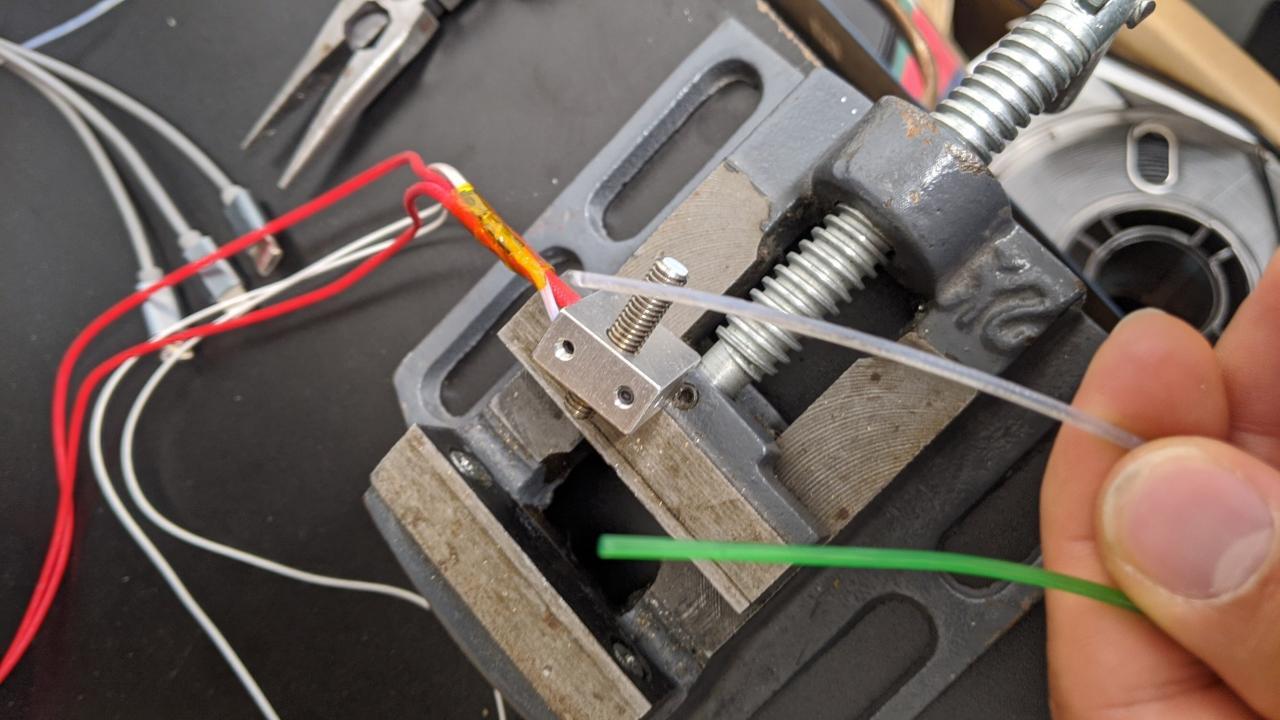
The process of loading filament into the extruder varies slightly between printer models and extruder types (Bowden vs. Direct Drive). However, the core principle remains consistent: guiding the filament into the hotend assembly. For most printers, this involves carefully inserting the filament end into the designated filament entry point.For Bowden extruders, the filament is fed through a PTFE tube towards the hotend.
It’s crucial to ensure the filament end is cut cleanly, preferably at a 45-degree angle, to facilitate smooth entry into the tube and prevent it from snagging. Gently push the filament until you feel resistance, indicating it has reached the extruder gears or the hotend.With direct drive extruders, the filament is fed directly into the extruder gears and then into the hotend.
Again, a clean, angled cut is beneficial. You will typically push the filament until it engages with the extruder gears.
Initiating a Filament Change Through the Printer Interface
Most modern 3D printers offer a user-friendly interface to manage filament changes. This is usually found within the printer’s menu system, often under “Prepare,” “Control,” or a dedicated “Filament” section.To initiate a change, navigate to the filament menu and select the option for “Unload Filament” or “Change Filament.” The printer will then typically perform a series of actions to prepare for the swap.
This often includes heating the hotend to a specific temperature suitable for the currently loaded filament.
Initial Extrusion and Purging
Once the hotend has reached the appropriate temperature and you have manually unloaded the old filament (or the printer has initiated an unload sequence), you will load the new filament. After loading, it’s essential to purge the hotend to ensure the previous filament material is completely expelled.The printer interface will usually have a “Load Filament” or “Extrude” option. Select this, and the printer will begin to feed the new filament through the hotend.
You will observe filament extruding from the nozzle. This initial extrusion is often referred to as “purging.” The color and consistency of the extruded filament will gradually change as the old material is pushed out.
Confirming Complete Filament Removal
Ensuring the previous filament is entirely purged is critical for print quality and to prevent clogs. You need to observe the extruded filament closely.The purging process is complete when the extruded filament is consistently the color of the new filament and shows no streaks or discoloration from the previous material. For example, if you are switching from black PLA to white PLA, you will see black filament extruding, gradually turning gray, and finally becoming pure white.
The extruded material should also be smooth and consistent, without any lumps or signs of degradation from the previous filament.A common practice is to extrude a significant length of the new filament – often 50-100mm, depending on your hotend’s volume – to be absolutely sure.
Essential Actions Before Starting a Print with Newly Swapped Filament
Before commencing a new print after a filament change, a brief but crucial checklist ensures optimal results and prevents potential issues. Performing these steps will save you time and filament by avoiding failed prints.Here is a checklist of essential actions to perform:
- Confirm Hotend Temperature: Ensure the hotend is heated to the correct printing temperature for the
-new* filament type. Different materials have vastly different optimal printing temperatures. - Verify Filament Loading: Manually feel the filament being fed into the extruder. It should move smoothly and consistently without slipping or binding.
- Purge Sufficiently: Visually confirm that the previous filament color and material are entirely gone from the extruded filament. Extrude at least 50-100mm of the new filament.
- Perform a Test Extrusion: Manually extrude a small amount of the new filament to check for consistent flow and a clean, well-formed extrusion.
- Level the Print Bed: After any significant printer maintenance or filament changes, it’s always a good practice to re-level your print bed to ensure proper first-layer adhesion.
- Inspect the Nozzle: Briefly check the nozzle for any residual filament or debris that might affect the print.
- Check Filament Path: Ensure the new filament is not snagged on the spool or caught on any part of the printer’s frame, allowing for unimpeded movement.
Addressing Common Challenges During Filament Swaps
Successfully switching between filament types is a key skill for any 3D printing enthusiast, but sometimes, things don’t go as smoothly as planned. This section is dedicated to helping you navigate and resolve the most common issues encountered during filament changes, ensuring your printing workflow remains uninterrupted and your prints are of the highest quality.Filament swapping can sometimes present minor setbacks, but with a systematic approach, these challenges can be effectively overcome.
Understanding the potential pitfalls and their solutions will empower you to troubleshoot efficiently and continue with your printing projects with confidence.
Filament Grinding or Slipping During Loading
Filament grinding or slipping, often indicated by a clicking sound from the extruder gears or visible shavings around the filament path, can prevent proper filament feeding. This issue typically arises when the extruder motor struggles to grip or push the filament.Several factors can contribute to filament grinding or slipping:
- Extruder Tension: The spring-loaded arm of the extruder might be too tight, crushing the filament, or too loose, failing to grip it effectively. Adjusting the tension screw to achieve a firm but not overly aggressive grip is crucial.
- Nozzle Resistance: If the nozzle is partially clogged or the hotend temperature is too low for the filament being loaded, it creates back pressure that the extruder struggles to overcome.
- Filament Diameter Inconsistency: Minor variations in filament diameter can cause the extruder gears to slip.
- Worn Extruder Gear: Over time, the teeth on the extruder gear can become worn, reducing their grip on the filament.
- Obstructions in the Filament Path: Debris or filament residue in the extruder mechanism or Bowden tube can impede smooth feeding.
To address this, first, try slightly loosening the extruder tension. If the problem persists, verify that the hotend is at the correct temperature for the filament you are loading. Inspect the extruder gear for wear and clean any debris from the filament path. If the gear is worn, replacement may be necessary.
Filament Not Extruding Properly After a Change
When a new filament fails to extrude correctly, it can manifest as under-extrusion, stringing, or no extrusion at all. This indicates that the filament is not melting and flowing through the nozzle as expected.Common reasons for improper extrusion after a filament change include:
- Incorrect Hotend Temperature: Each filament type has an optimal printing temperature range. If the hotend is set too low, the filament will not melt sufficiently. Conversely, if it’s too high, it can lead to oozing and stringing. Always refer to the filament manufacturer’s recommendations.
- Incomplete Purge: Residual old filament material remaining in the hotend can mix with the new filament, affecting its extrusion properties. A thorough purge is essential to clear out the old material.
- Nozzle Clog: A partial or complete clog in the nozzle will restrict or prevent filament flow.
- Extruder Issues: As mentioned previously, issues with extruder tension or gear grip can also lead to poor extrusion.
- Filament Quality: Inconsistent filament diameter or poor material quality can contribute to extrusion problems.
To resolve this, confirm the hotend temperature is set correctly for the new filament. Perform a sufficient purge to ensure all previous filament is expelled. If extrusion remains problematic, consider performing a cold pull to clear any potential clogs and check the extruder mechanism.
Nozzle Clogs During or Immediately After a Filament Swap
Nozzle clogs are a frequent frustration, especially when changing filament types. These can occur if the previous filament wasn’t fully cleared, if there’s a temperature mismatch, or if debris is introduced.Here are strategies for diagnosing and resolving nozzle clogs:
- Hotend Temperature Fluctuation: Ensure the hotend maintains a stable temperature during the swap. Rapid cooling or inconsistent heating can cause filament to solidify prematurely within the nozzle.
- Incompatible Filament Mixing: Attempting to print with a filament type that has significantly different melting points or additives without a proper purge can lead to partial clogs.
- Debris in the Filament: A small piece of debris or dust on the new filament can get lodged in the nozzle.
- “Heat Creep”: If the heat break is not adequately cooled, heat can travel too far up the filament path, causing filament to soften and jam before reaching the melt zone.
To fix a clog, a common method is to heat the nozzle to the printing temperature of the filament currently loaded, then manually push filament through. If this doesn’t work, a “cold pull” is often effective. This involves heating the nozzle slightly above the filament’s melting point, then allowing it to cool down significantly. Once cooled, you attempt to pull the filament out.
The partially cooled filament can snag debris and pull it out with it. If the clog is severe, nozzle cleaning needles or even nozzle replacement might be necessary.
Inconsistent Extrusion Rates with a New Filament
Inconsistent extrusion, characterized by gaps in layers or over-extrusion leading to blobby prints, can be particularly noticeable when switching to a new spool of filament. This indicates an issue with how the filament is being delivered to the nozzle.The following factors can cause inconsistent extrusion rates:
- Filament Diameter Variance: Even minor inconsistencies in filament diameter can cause the extruder to push more or less material than intended, leading to variations in flow rate.
- Incorrect E-steps Calibration: The extruder’s E-steps calibration dictates how much filament is extruded for a given command. If this is not accurately set for the specific filament or extruder setup, extrusion will be inconsistent.
- Bowden Tube Issues: In Bowden setups, friction within the tube or a poor connection at either end can lead to inconsistent filament delivery.
- Printing Speed Too High: Extruding filament at a speed that exceeds the hotend’s melting capacity will result in under-extrusion.
To address inconsistent extrusion, first, measure the diameter of the new filament at several points using calipers to check for significant variations. If the diameter is inconsistent, you may need to adjust your slicer settings or consider a different filament brand. Calibrating your extruder’s E-steps is a crucial step; refer to your printer’s manual or online guides for the correct procedure.
For Bowden setups, ensure the tube is properly seated and free of kinks. Finally, experiment with slightly lower printing speeds if under-extrusion is observed.
Diagnosing and Fixing Filament Tangles or Knots During Loading
Filament tangles or knots are a common and frustrating problem that can halt printing entirely. These usually occur when the filament is not feeding smoothly off the spool.The primary causes and solutions for filament tangles include:
- Spool Not Mounted Correctly: If the spool is mounted too tightly or loosely on its holder, it can prevent smooth unwinding.
- Filament Looping Back: During printing or storage, the end of the filament might not be secured to the spool, allowing it to unravel and create a tangle.
- Tangled Filament on the Spool Itself: Sometimes, the filament is wound in a way that creates internal loops or knots within the spool.
- Printer Movement Causing Snagging: The movement of the printer’s axes can occasionally snag the filament if it’s not feeding freely.
To diagnose and fix tangles:
- Inspect the Spool: Before loading, always visually inspect the filament spool to ensure the end is properly secured and that there are no obvious loops or knots.
- Secure the Filament End: When not in use, always feed the filament end into one of the designated holes on the spool or use a filament clip to prevent it from unraveling.
- Mount the Spool Properly: Ensure the spool rotates freely on its holder. If it’s too stiff, loosen the mount; if it’s too loose and wobbles excessively, tighten it slightly.
- Manually Unwind and Retangle: If you encounter a tangle during loading, stop the process and carefully manually unwind the tangled section. Once free, re-secure the filament end to prevent recurrence.
- Gentle Tension: Apply gentle, consistent tension as you load the filament. Avoid yanking or forcing it, as this can worsen tangles.
A proactive approach to filament management, including securing filament ends and proper spool mounting, is the most effective way to prevent tangles.
Optimizing Print Settings for New Filament Types
Successfully switching between different filament types on your 3D printer involves more than just a physical swap; it requires a thoughtful adjustment of your print settings. Each material possesses unique thermal and mechanical properties that dictate how it flows, adheres, and solidifies. Fine-tuning these parameters is crucial for achieving high-quality prints, preventing failures, and maximizing the potential of your chosen filament.
This section will guide you through the essential print setting adjustments needed for a seamless transition to new materials.
Nozzle Temperature Settings
The nozzle temperature is one of the most critical settings to adjust when changing filament types, as it directly impacts filament flow, layer adhesion, and surface finish. Different polymers have distinct melting points and optimal printing temperatures. Printing too cold can lead to poor layer bonding and under-extrusion, while printing too hot can cause oozing, stringing, and degradation of the filament’s properties.
- PLA (Polylactic Acid): Generally prints between 190°C and 220°C. A common starting point is 200°C.
- ABS (Acrylonitrile Butadiene Styrene): Requires higher temperatures, typically ranging from 230°C to 260°C. This is due to its higher glass transition temperature.
- PETG (Polyethylene Terephthalate Glycol): Falls between PLA and ABS, usually printing between 220°C and 250°C. It offers a good balance of ease of printing and durability.
- TPU (Thermoplastic Polyurethane): A flexible filament that often requires lower temperatures than rigid plastics, typically 210°C to 230°C, to maintain flexibility and prevent jamming.
- Nylon: Known for its strength and durability, nylon generally requires higher nozzle temperatures, often between 240°C and 270°C, and is very sensitive to moisture.
It is always recommended to consult the filament manufacturer’s specifications for their recommended temperature range. Performing temperature towers, which are calibration prints designed to test a range of temperatures, is an excellent way to identify the optimal nozzle temperature for a specific filament brand and color.
Bed Adhesion Settings
Proper bed adhesion is fundamental to a successful 3D print. Without it, your print can detach from the build plate mid-print, leading to failed prints and potential damage to your printer. Different filament types have varying adhesion characteristics, and the build surface itself can also influence these requirements.
- PLA: Typically adheres well to most surfaces with a heated bed set between 50°C and 60°C. Some users may find success with unheated beds for PLA, especially with certain build surfaces like PEI.
- ABS: Requires higher bed temperatures, usually between 90°C and 110°C, to prevent warping and ensure good adhesion. An enclosure is often recommended for ABS to maintain a stable ambient temperature.
- PETG: Generally prints well with bed temperatures between 70°C and 85°C. It can sometimes adhere
-too* strongly to certain surfaces like glass, so a thin layer of glue stick or a release agent might be beneficial. - TPU: Often prints best with a cooler bed, around 40°C to 60°C. Excessive bed heat can make TPU too soft and prone to sticking too aggressively or deforming.
- Nylon: Can be challenging to adhere. Bed temperatures typically range from 70°C to 90°C, and specialized build surfaces or adhesives like PVA glue or hairspray are often necessary.
Consider using adhesion aids such as brim, skirt, or raft depending on the complexity of your model and the filament’s tendency to warp. The build surface material (e.g., glass, PEI, BuildTak) also plays a significant role; some surfaces offer better inherent adhesion for specific materials.
Retraction Settings
Retraction is the process of pulling filament back into the nozzle during non-print moves. This is essential for preventing stringing, which are fine wisps of plastic that can mar the surface of your print. Different filament types have varying viscosities and tendencies to ooze, requiring adjustments to retraction distance and speed.
- Retraction Distance: This setting determines how far the filament is pulled back. For Bowden extruders, longer distances (e.g., 4mm to 7mm) are typically needed compared to direct drive extruders (e.g., 0.5mm to 2mm). Materials like ABS might require slightly longer retraction to combat oozing.
- Retraction Speed: This setting controls how quickly the filament is pulled back. Typical speeds range from 25mm/s to 60mm/s. Faster retraction can be effective but may also grind the filament if too aggressive.
- Wipe/Coasting: Some slicers offer settings like “Wipe” or “Coasting” which can further reduce stringing by moving the nozzle a short distance after retraction or releasing a tiny amount of filament before a travel move.
It is crucial to perform retraction calibration prints, such as stringing tests, to dial in these settings for each filament. Over-retracting can lead to clogs, while under-retracting results in noticeable stringing.
Print Speed and Cooling Fan Settings
Print speed and cooling fan settings are interconnected and influence how well the extruded plastic solidifies and fuses with the previous layer. Different filaments have different cooling requirements to achieve optimal mechanical properties and surface finish.
- Print Speed:
- PLA: Generally prints well at moderate to high speeds (e.g., 50mm/s to 100mm/s).
- ABS: Often benefits from slower print speeds (e.g., 30mm/s to 60mm/s) to allow for better layer adhesion and reduce warping, especially when printing larger objects.
- PETG: A moderate speed (e.g., 40mm/s to 70mm/s) is usually recommended. Printing too fast can lead to poor layer adhesion and gaps.
- TPU: Due to its flexibility, TPU generally requires significantly slower print speeds (e.g., 20mm/s to 40mm/s) to prevent jamming and ensure consistent extrusion.
- Cooling Fan Speed:
- PLA: Benefits from strong cooling (e.g., 100% fan speed after the first few layers) to help it solidify quickly and achieve sharp details.
- ABS: Requires minimal to no cooling (e.g., 0% to 30% fan speed). Excessive cooling can lead to cracking and warping due to thermal stress.
- PETG: Usually requires moderate cooling (e.g., 30% to 70% fan speed). Too much cooling can weaken layer bonds, while too little can lead to drooping and poor overhangs.
- TPU: Often requires minimal cooling (e.g., 0% to 30% fan speed) to ensure good layer adhesion and prevent it from becoming too brittle.
The optimal settings for speed and cooling are often a balance between print quality, print time, and the specific characteristics of the filament. Always start with conservative settings and gradually increase speed or adjust cooling as needed, observing the print quality.
Framework for Documenting Successful Print Settings
Creating a personal database of successful print settings for each filament type you use is an invaluable practice. This framework will save you time, reduce trial-and-error, and ensure consistent results across multiple prints and projects.A simple and effective way to document these settings is by using a spreadsheet or a dedicated logbook. For each filament, record the following information:
| Filament Type | Brand & Color | Nozzle Temperature (°C) | Bed Temperature (°C) | Print Speed (mm/s) | Retraction Distance (mm) | Retraction Speed (mm/s) | Cooling Fan Speed (%) | Build Surface | Adhesion Aids Used | Notes/Observations |
|---|---|---|---|---|---|---|---|---|---|---|
| PLA | BrandX Silk Gold | 205 | 60 | 70 | 1.5 (Direct Drive) | 40 | 100 | PEI Sheet | None | Excellent surface finish, slightly shiny. |
| ABS | BrandY Black | 250 | 100 | 50 | 6.0 (Bowden) | 50 | 10 | Glass + Glue Stick | Brim (4mm) | Requires enclosure, minimal warping. |
| PETG | BrandZ Clear | 235 | 75 | 60 | 4.0 (Bowden) | 45 | 50 | PEI Sheet | Thin layer of PVA | Can adhere too strongly to glass, good layer adhesion. |
When you discover a new filament or a particularly successful print, take the time to meticulously record the settings. This documentation will serve as a reliable reference point, allowing you to quickly load optimal parameters for known materials and providing a solid starting point for experimenting with new ones.
Advanced Filament Switching Techniques
Moving beyond basic filament changes, advanced techniques unlock a new realm of creative possibilities in 3D printing. These methods allow for the seamless integration of multiple materials and colors within a single print, enabling more complex designs and functional prototypes. Understanding these advanced strategies can significantly expand your printing capabilities.The world of advanced filament switching often involves specialized hardware and a deeper understanding of your printer’s mechanics.
This section will delve into systems designed for multi-material printing, automated filament changes, manual mid-print swaps, helpful tools, and the crucial role of extruder design.
Multi-Material Printing Systems
Multi-material printing, often referred to as multi-color or multi-property printing, is achieved through systems that can manage and extrude more than one filament type simultaneously or sequentially. These systems are designed to handle the complexities of switching between different materials without significant manual intervention during the print.There are several primary approaches to multi-material printing:
- Multiple Extruders: This is a common setup where each extruder is dedicated to a specific filament. The printer nozzle moves to the appropriate extruder for the filament required at any given time. This approach offers excellent material separation but can lead to larger printer footprints and potential issues with oozing from inactive nozzles.
- Single Nozzle, Multiple Inputs: In this configuration, a single hotend receives filament from multiple input paths. A mechanism within the printer selects which filament to feed into the hotend. This can reduce the overall size and weight of the print head compared to multiple extruders, but it requires precise control to prevent filament tangling and cross-contamination.
- Tool Changers: More sophisticated systems feature tool changers, where the printer can automatically swap out entire print heads, each potentially equipped with a different nozzle size or material. This offers the highest degree of flexibility for different materials and even different printing tools, but it represents a significant investment and complexity.
Filament Buffer Systems for Automated Filament Changes
Filament buffer systems are ingenious devices designed to automate the process of filament changes, particularly in printers equipped with single extruders. These systems store excess filament and manage its retraction and feeding, allowing for seamless material swaps without interrupting the printing process for extended periods.The core function of a filament buffer is to provide a reservoir of filament, preventing jams and ensuring a continuous supply.
When a filament change is initiated, the buffer system can:
- Retract the old filament cleanly and store it.
- Advance the new filament to the hotend.
- Purge any residual old filament to avoid color or material contamination.
These systems are crucial for achieving high-quality prints with multiple colors or materials on printers that do not have dedicated multiple extruders. They contribute significantly to the “set it and forget it” aspect of advanced 3D printing.
Manually Swapping Filament Mid-Print for Specific Design Requirements
While automated systems are convenient, there are instances where manually swapping filament mid-print is a deliberate and necessary choice for achieving specific design outcomes. This technique requires careful timing and execution to maintain print integrity.This manual intervention is often employed for:
- Adding Soluble Supports: Printing with a dissolvable support material requires a manual swap when supports are needed and then again to return to the primary filament.
- Color Changes for Specific Layers: For artistic or functional reasons, a precise color change can be initiated manually at a specific layer height.
- Material Transitions: In some cases, a print might require a transition from one material to another mid-way, such as from a rigid filament to a flexible one.
The process involves pausing the print, carefully retracting the current filament, inserting the new filament, and then purging the hotend until the new color or material is extruding cleanly before resuming the print. Patience and precision are key to a successful manual mid-print swap.
Specialized Tools or Modifications to Facilitate Easier Filament Changes
Several tools and modifications can significantly simplify the filament changing process, whether manual or semi-automated. These enhancements aim to reduce friction, improve grip, and ensure a clean path for the filament.Consider these helpful additions:
- Filament Guides and Rollers: These components ensure that filament travels smoothly from the spool to the extruder, preventing tangles and snags that can lead to failed prints or difficult changes.
- Quick-Release Extruder Levers: Some extruders are equipped with levers that allow for faster and easier engagement and disengagement of the filament drive gear, making manual filament loading and unloading much quicker.
- Filament Cutter Tools: A small, sharp filament cutter ensures a clean, square end on the filament, which is crucial for smooth insertion into the extruder and hotend.
- Bowden Tube Connectors: Upgraded push-fit connectors for Bowden tubes can provide a more secure and reliable connection, reducing the chance of leaks or filament grinding.
- Oozing Shields/Wipes: For printers with multiple extruders, a small mechanism that wipes or shields the inactive nozzle can prevent dried filament drips from contaminating the print.
Comparison of Different Extruder Designs and Their Impact on Filament Switching Ease
The design of the extruder system plays a pivotal role in how easily and effectively filament changes can be performed. Extruders are responsible for gripping and pushing the filament into the hotend, and their mechanics directly influence the effort and precision required for filament swaps.Here’s a comparison of common extruder designs and their impact:
| Extruder Design | Description | Impact on Filament Switching Ease |
|---|---|---|
| Direct Drive Extruder | The motor and drive gear are mounted directly on the print head, immediately above the hotend. | Generally easier for filament changes as the filament path is very short. Retraction is more precise, leading to cleaner filament removal. Less prone to grinding filament during retraction. |
| Bowden Extruder | The motor and drive gear are mounted on the printer frame, pushing filament through a PTFE tube to the hotend. | Can be more challenging for filament changes due to the longer filament path and potential for backlash in the PTFE tube. Requires more careful retraction to ensure the filament clears the tube. Can be more prone to filament grinding if not properly tensioned. |
| Geared Extruders | Extruders that incorporate a gearbox to increase torque and improve filament grip. | Significantly easier filament changes, especially with flexible or abrasive filaments. The increased grip reduces slipping and ensures more consistent filament feeding and retraction, leading to cleaner swaps. |
The choice of extruder design can thus greatly influence the user experience when switching filaments, with direct drive and geared extruders generally offering a more streamlined process.
Filament Storage and Maintenance Best Practices
Proper filament storage and consistent maintenance are crucial for ensuring high-quality 3D prints and extending the lifespan of your filament materials. Neglecting these aspects can lead to print failures, material degradation, and ultimately, wasted resources. This section will guide you through the essential practices for keeping your filament in optimal condition and your printer running smoothly.
Filament Storage Recommendations
Storing filament correctly is paramount to preventing moisture absorption and degradation, which can significantly impact print quality. Different filament types have varying sensitivities to environmental conditions, requiring tailored storage solutions.
- Airtight Containers: Utilize airtight containers, such as resealable plastic bags, vacuum-sealed bags, or specialized filament storage boxes. These create a barrier against ambient moisture.
- Desiccants: Include desiccant packets (like silica gel) within your storage containers. These actively absorb any residual moisture. It’s advisable to periodically dry out the desiccants in an oven to regenerate them.
- Temperature Control: Store filament in a cool, dry environment, away from direct sunlight and heat sources. Extreme temperatures can cause filament to deform or degrade.
- Filament Dryers: For highly hygroscopic filaments, consider investing in a dedicated filament dryer. These devices actively remove moisture from the filament before and during printing.
Humidity Impact on Filament Materials
Humidity is the primary enemy of most 3D printing filaments. When filaments absorb moisture, it can lead to a variety of printing issues, from stringing and blobbing to weak layer adhesion and brittle prints. The extent of this impact varies significantly between different polymer types.
The effect of humidity is particularly pronounced in materials like:
- Nylon: Highly hygroscopic, absorbing moisture rapidly. This can lead to steam bubbles forming during printing, causing poor surface finish and reduced strength.
- PETG: While more resistant than Nylon, PETG can still absorb moisture, resulting in stringing and a duller surface finish.
- TPU (Flexible Filaments): Moisture absorption can make flexible filaments brittle and difficult to print, leading to inconsistent extrusion.
- PLA: Less hygroscopic than Nylon or PETG, but prolonged exposure to high humidity can still degrade its properties, leading to brittleness.
- ABS: Relatively resistant to moisture compared to others, but still benefits from dry storage to maintain optimal printing characteristics.
Organizing Filament Spools
An organized filament collection makes it easier to select the right material for your project and reduces the time spent searching for spools. Clear labeling and logical placement are key to efficient filament management.
Implement the following strategies for effective organization:
- Labeling: Clearly label each spool with the filament type, brand, color, and ideally, the date of purchase or when it was last dried. This information is vital for tracking filament age and condition.
- Categorization: Group filaments by type (e.g., all PLA together, all PETG together) or by color. This simplifies selection based on project requirements.
- Storage Solutions: Utilize shelves, drawers, or specialized filament racks. For frequently used filaments, consider keeping them in easily accessible locations.
- Spool Holders: Ensure your spools are stored on appropriate holders that prevent them from unraveling.
Filament Lifespan and Degradation Signs
Filament does not last indefinitely, and its properties degrade over time, especially if not stored correctly. Recognizing the signs of degradation is crucial to avoid printing failures.
The typical lifespan of a filament spool can vary, but generally:
- PLA: Can last 1-2 years if stored properly.
- PETG: Can last 2-3 years if stored properly.
- ABS: Can last 2-3 years if stored properly.
- Nylon: Can last 1-2 years if stored properly due to its high hygroscopicity.
- TPU: Can last 1-2 years if stored properly.
Signs that indicate a filament may be degraded include:
- Brittleness: The filament snaps easily when bent.
- Stringing and Oozing: Excessive stringing or material oozing from the nozzle even at optimal temperatures.
- Poor Layer Adhesion: Prints that easily break apart at the layer lines.
- Surface Imperfections: Bubbles, popping sounds during extrusion (indicating moisture), or a dull/chalky surface finish.
- Inconsistent Extrusion: Difficulty in achieving a smooth and consistent extrusion flow.
Routine Maintenance Schedule
Regular maintenance of your 3D printer’s extruder and filament path components ensures smooth operation and prevents issues that can arise from filament residue or wear.
Establish a routine maintenance schedule to keep your printer in top condition:
- After Each Print:
- Clean the print bed.
- Wipe down the exterior of the printer.
- Weekly (or every 50-100 print hours):
- Inspect and clean the nozzle exterior for any filament residue.
- Check and clean the filament drive gear for any accumulated plastic dust.
- Lubricate any moving parts (e.g., Z-axis rods, linear rails) as per your printer’s manual.
- Inspect the Bowden tube (if applicable) for wear or damage.
- Monthly (or every 200-300 print hours):
- Perform a “cold pull” or “atomic pull” to clean the inside of the nozzle and heat block, removing any burnt-on plastic.
- Inspect and clean the extruder gears more thoroughly.
- Check belt tension and adjust if necessary.
- Inspect hotend thermistor and heater cartridge connections for security.
- Clean cooling fans to ensure optimal performance.
- Quarterly (or as needed):
- Consider disassembling and cleaning the hotend for a deep clean.
- Inspect and potentially replace worn-out PTFE tubing in the hotend or Bowden setup.
- Check the integrity of all wiring connections.
“A well-maintained printer and properly stored filament are the foundation of successful and consistent 3D printing.”
Final Review
Mastering the art of switching between different filament types is an essential step in elevating your 3D printing capabilities. By understanding material properties, preparing your printer diligently, and following a clear process, you can confidently explore a wider range of filaments and unlock new creative potentials. Embrace these techniques, troubleshoot with ease, and optimize your settings to bring your most ambitious designs to life, one filament change at a time.